Tag Archives: LightDM

RaspEX Rpi5/Rpi4 64 bit based on Ubuntu 26.04 LTS “Resolute Raccoon” with LXQt 2.2, kernel 6.17.0-1003-raspi and Firefox with DRM support :: Build 260114

NEWS 260114 about RaspEX with LXQt based on upcoming Ubuntu 26.04 LTS Resolute Raccoon 
RaspEX Build 260114 is a Linux ARM (64 bit) system for Raspberry Pi 5 with 4GB/8GB and Raspberry Pi 4 with 2GB/4GB/8GB RAM It is based on Debian and Ubuntu 26.04 LTS. Firefox Browser with DRM (Digital Rights Management) support is pre-installed.

Study all installed packages in RaspEX Build 260114.

RASPBERRY Pi 5 and 4
RaspEX is made especially for the “new” Raspberry Pi 5 released October 23, 2023 (4GB and 8GB), but can also be used on a Raspberry Pi 4.
NOTE: A Raspberry Pi 5 is about twice as fast as the Raspberry Pi 4.

SCREENSHOTS
Screenshot 1 – raspex’s Desktop 260114
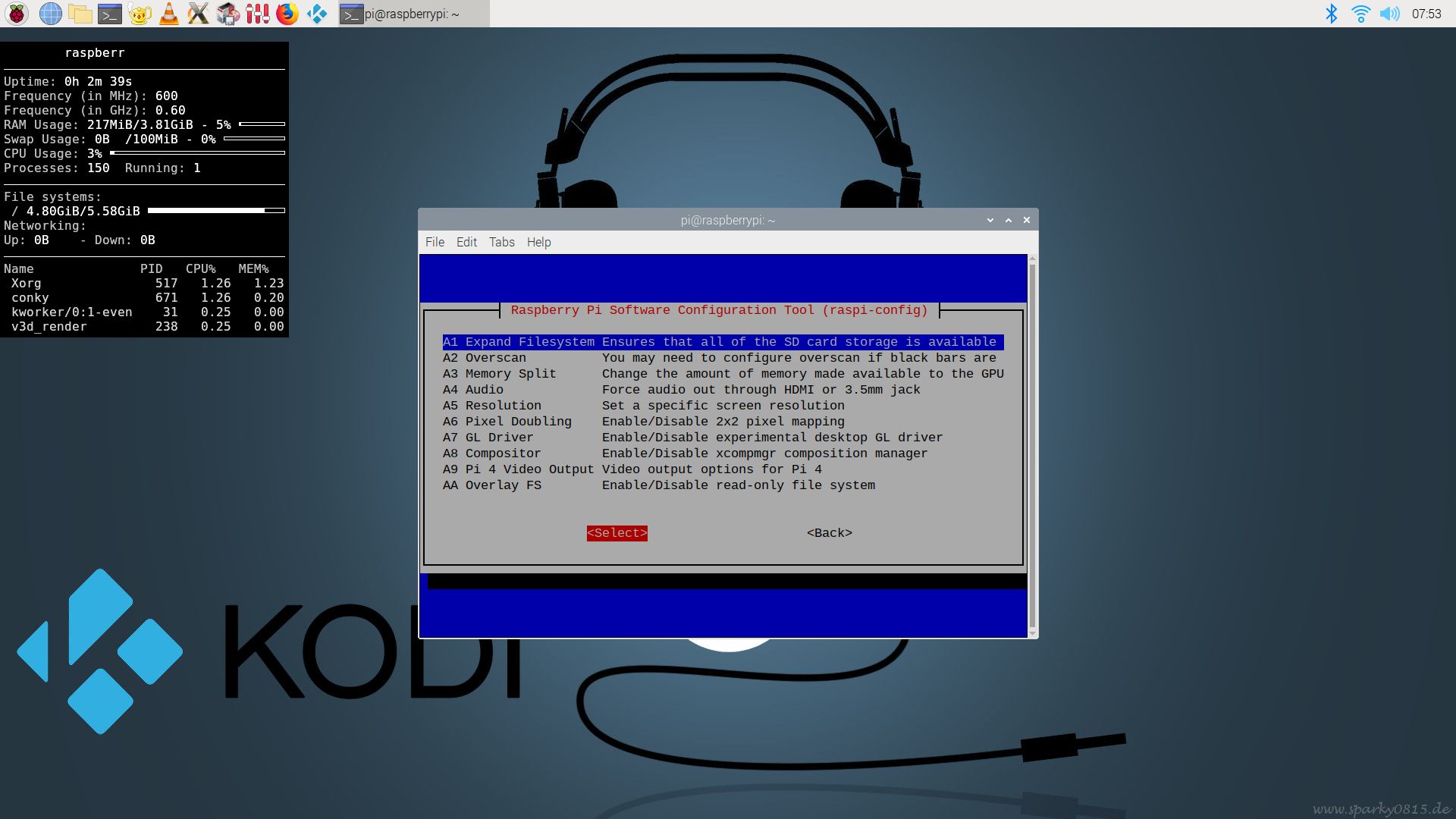
Screenshot 2 – Running raspi-config
Screenshot 3 – Running Synaptic
Screenshot 4 – Showing that OpenGL is used

READ MORE…

Read about my Android-x86 Systems – 11, 10, Pie, Oreo, Nougat, Marshmallow, Lollipop and KitKat at andex.exton.net – latest is AndEX 11 (with GAPPS), AndEX 10 (with GAPPS) and AndEX Pie 9.0 (also with GAPPS)!
and
about my Android 16, 15, 14, 13, 12, 11, 10, Pie, Oreo, Nougat, Marshmallow and Lollipop versions for Raspberry Pi 5, Pi 4 and  Pi 3/2 at raspex.exton.se – latest is RaspAnd 16 (with GAPPS), RaspAnd 15 (also with GAPPS), RaspAnd 14 (also with GAPPS), 13 and 12 (without GAPPS), RaspAnd 11 (with GAPPS) and RaspAnd Oreo 8.1 (also with GAPPS)!

Follow me on Facebook…

EXTON OpSuS (openSUSE) Tumbleweed with KDE Plasma 6.5.2, Refracta Snapshot and kernel 6.17.4-amd64-exton :: Build 251122

EXTON OpSuS Tumbleweed is based on openSUSE Tumbleweed, which is a rolling distribution. I.e. no need for new installations. Just run the command sudo zypper dup and you will always get the latest stable packages/kernels. The ISO files are of 2640MB (GNOME version) respectively 3030 MB (KDE version). Both versions will thus run very fast from a DVD or a USB stick. Even in VirtualBox/VMware directly from the ISO file.

ABOUT Tumbleweed
With Tumbleweed you don’t have to take difficult decisions about things you value, either freedom or safety, either control or security, technology or stability — Tumbleweed lets you have your cake and eat it too.
READ MORE…

EXTON OpSuS Tumbleweed with KDE Plasma 6.5.2 Desktop Environment Build 251122
This OpSuS version uses kernel 6.17.4-amd64-exton. Installed programs: Among many other programs, Firefox, NetworkManager, GParted and a lot of special KDE packages. You’ll run the system as the normal user user or as root. The password for user is live. Root’s password is root. EXTON OpSuS KDE can easily be installed to hard drive (of those who so desire). For that you shall use Refracta Installer. All packages have been updated to the latest available version as of November 22, 2025.
NOTE1
:  When the boot process is ready you will end up at LightDM’s login screen. You can log in to the KDE Plasma Desktop as user with password live or as root with password root. You will see this first screen when logged in to KDE as the normal user user.
NOTE2: When logged in as root you won’t have sound. Watch a screenshot of the KDE Desktop for root.
NOTE3: Version 251122 of EXTON OpSuS can run on really old computers. As an example I could run it on my 19 years old laptop Acer Aspire 5102 WLMi. Not very fast, but still…
NOTE4: Use Refracta Snapshot to build your very own version of EXTON OpSuS/openSUSE. I.e. you can change everything to you liking and quickly create a new ISO file. Your own.
NOTE5:
Kernel 6.17.4-amd64-exton is used when running EXTON OpSuS LIVE. When running the System from hard drive you can use openSUSE’s kernel. Right now version 6.17.8.
NOTE6: To be able to use Refracta Snapshot you’ll have to keep “my” kernel 6.17.4-amd64-exton in /boot and also the links to said kernel in /. (/vmlinuz and /initrd.img).
NOTE7: The KDE version 251122 works very well in VirtualBox and VMware. Version 251120 did not work so well in VirtualBox. That is the main reason for the new Build of 251122.
NOTE8: The KDE version works very well on all “normal” computers. I could run the system on my six different computers. If you have at least 6GB RAM (maybe just 4GB) you can choose boot alternative 2 – “Load to RAM”. (The best way to run any Linux system). Watch this screenshot.
NOTE9: EXTON OpSuS is a LIVE system, which means that you can try it before you install it. The official openSUSE distribution must be installed immediately.
NOTE 10: When logging in to the KDE Plasma Desktop you can choose between the X11 server and Wayland – screenshot. Wayland is the modern, more secure, and efficient replacement for the older X11 display server.

SCREENSHOTS
1. The Desktop for the normal user user
2. The Desktop for root
3. Refracta Installer has started
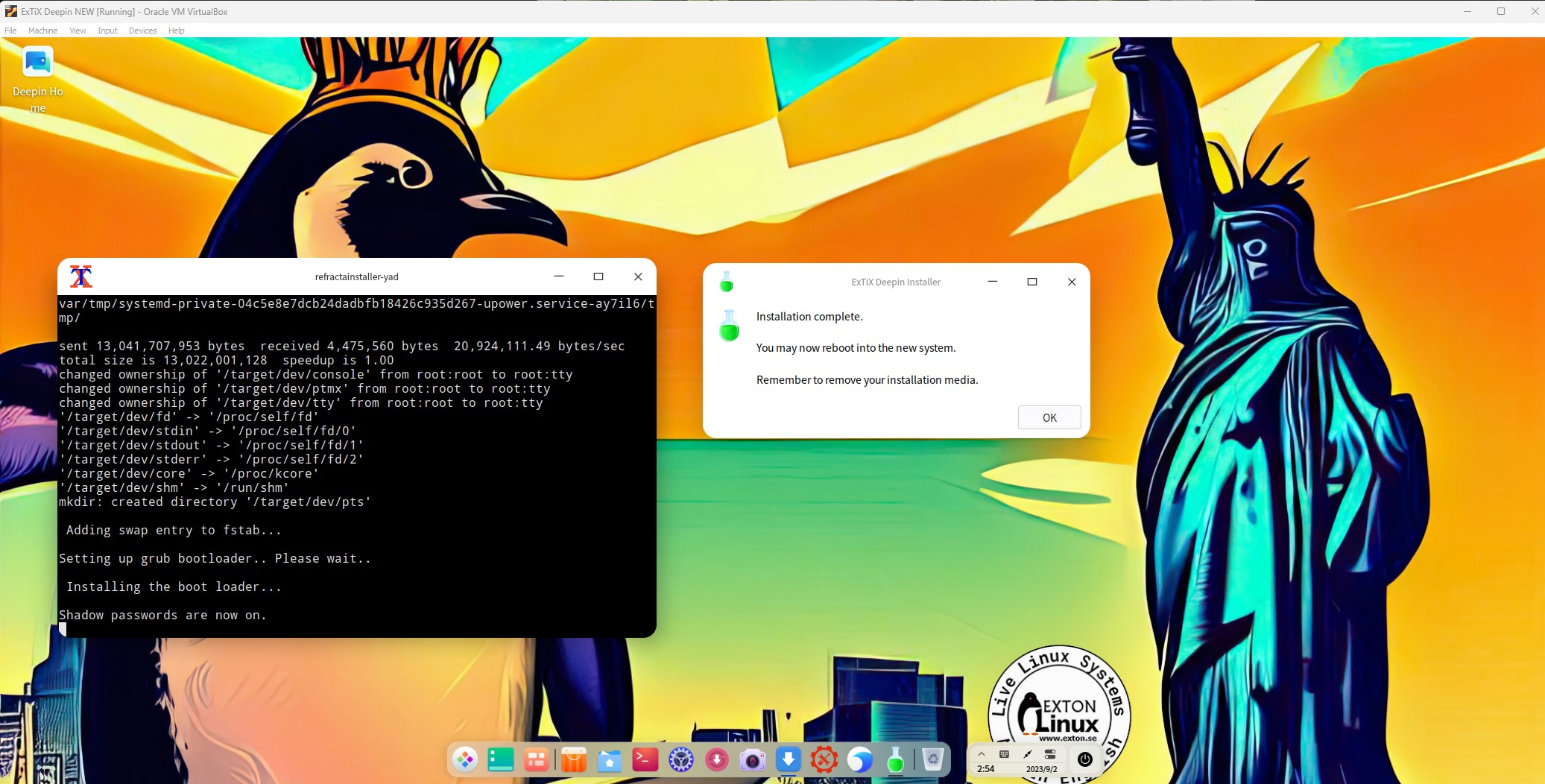
4. Refracta Installer has completed
5. Setting screen resolution in VirtualBox
6. Using Samba

READ MORE…

Read about my Android-x86 Systems – 11, 10, Pie, Oreo, Nougat, Marshmallow, Lollipop and KitKat at andex.exton.net – latest is AndEX 11 (with GAPPS), AndEX 10 (with GAPPS) and AndEX Pie 9.0 (also with GAPPS)!
and
about my Android 16, 15, 14, 13, 12, 11, 10, Pie, Oreo, Nougat, Marshmallow and Lollipop versions for Raspberry Pi 5, Pi 4 and  Pi 3/2 at raspex.exton.se – latest is RaspAnd 16 (with GAPPS), RaspAnd 15 (also with GAPPS), RaspAnd 14 (also with GAPPS), 13 and 12 (without GAPPS), RaspAnd 11 (with GAPPS) and RaspAnd Oreo 8.1 (also with GAPPS)!


Follow me on Facebook…

PuppEX Trixie64 (Puppy Linux) – compatible with Debian 13 – with KDE Plasma 5:162 as DE :: Build 250901

NEWS 250901 ABOUT PuppEX Trixie64 – BUILD 250901 – with KDE Plasma 5:162

My new Puppy Linux derivative is built using the Trixie Build Script (mklive-trixie). It is compatible with Debian Trixie – Debian 13. It is for UEFI computers and non-UEFI computers. Build 250901 uses KDE Plasma 5:162 as Desktop Environment (DE). “Compatible with Debian 13” means that you can use the Apt command (apt update, apt upgrade, apt install MyUsefulPackage etc.) and Synaptic for installing thousands of new Debian packages in PuppEX Trixie64. PuppEX Trixie64 can easily be installed manually (frugal install) to hard drive if you have at least one Linux system installed. You must also use Grub as boot loader.

How to make a frugal installation – Instruction…

NOTE ABOUT SOUND
In PuppEX Trixie64 Build 250901 with KDE you will have sound also when logged in as root. That is essential since you normally run all Puppy/PuppEX versions as root. Screenshot of the Desktop for root…

SPECIAL NOTE ABOUT PuppEX Trixie64 KDE BUILD 250901
Normally you run all Puppy Linux versions as root. I.e. you will automatically be logged in as root to the desktop. Not as regards Build 250901 though. When the boot process is ready you will end up at LightDM‘s Login Manager page. Log in as the ordinary user puppy with password puppex. You will then enter the KDE Plasma Desktop. You can also log in to KDE as root with password root. While logged in as the ordinary user puppy you can of course use Sudo to become root. Example command: sudo pcmanfm.

REMASTER PuppEX Trixie64
Please note that you can build your own Puppy Trixie64 version using PuppEX Trixie64 as a “template”. Do it like this:
1) Make a frugal install of PuppEX Trixie64 – Instruction
2) Change everything to your liking
3) Start the remasterscript (QuickRemaster 1.7.1).
Watch this screenshot…

NOTE: The wallpapers are (of course) generated by AI.

READ MORE…

Read about my Android-x86 Systems – 11, 10, Pie, Oreo, Nougat, Marshmallow, Lollipop and KitKat at andex.exton.net – latest is AndEX 11 (with GAPPS), AndEX 10 (with GAPPS) and AndEX Pie 9.0 (also with GAPPS)!
and
about my Android 16, 15, 14, 13, 12, 11, 10, Pie, Oreo, Nougat, Marshmallow and Lollipop versions for Raspberry Pi 5, Pi 4 and  Pi 3/2 at raspex.exton.se – latest is RaspAnd 16 (with GAPPS), RaspAnd 15 (also with GAPPS), RaspAnd 14 (also with GAPPS), 13 and 12 (without GAPPS), RaspAnd 11 (with GAPPS) and RaspAnd Oreo 8.1 (also with GAPPS)!


Follow me on Facebook…

PuppEX Trixie64 (Puppy Linux) – compatible with Debian 13 – with LXQt 2.1 as DE :: Build 250829

NEWS 250829 ABOUT PuppEX Trixie64 – BUILD 250829 – with LXQt 2.1
My new Puppy Linux derivative is built using the Trixie Build Script (mklive-trixie). It is compatible with Debian Trixie – Debian 13. It is for UEFI computers and non-UEFI computers. Build 250829 uses LXQt 2.1 as Desktop environment (DE). “Compatible with Debian 13” means that you can use the Apt command (apt update, apt upgrade, apt install MyUsefulPackage etc.) and Synaptic for installing thousands of new Debian packages in PuppEX Trixie64. PuppEX Trixie64 can easily be installed manually (frugal install) to hard drive if you have at least one Linux system installed. You must also use Grub as boot loader.

NOTE ABOUT SOUND

In PuppEX Trixie64 Build 250829 with LXQt you will have sound also when logged in as root. That is essential since you normally run all Puppy/PuppEX versions as root.

SPECIAL NOTE ABOUT PuppEX Trixie64 LXQt BUILD 250829
Normally you run all Puppy Linux versions as root. I.e. you will automatically be logged in as root to the desktop. Not as regards Build 250829 though. When the boot process is ready you will end up at LightDM‘s Login Manager page. Log in as the ordinary user puppy with password puppex. You will then enter the LXQt Desktop. You can also log in to LXQt as root with password root. While logged in as the ordinary user puppy you can of course use Sudo to become root. Example command: sudo pcmanfm-qt.

REMASTER PuppEX Trixie64
Please note that you can build your own Puppy Trixie64 version using PuppEX Trixie64 as a “template”. Do it like this:
1) Make a frugal install of PuppEX Trixie64
2) Change everything to your liking
3) Start the remasterscript (QuickRemaster 1.7.1).
Watch this screenshot… 

Study ALL installed packages in PuppEX Trixie64 LXQt – 250829

PERFORMANCE
This PuppEX build is probably the best one I’ve ever made. Everything just works out of the box! And the system is very fast like all Puppy Linux versions. (Since they run in RAM).

SCREENSHOTS
1. The LXQt Desktop for the ordinary user puppy
2. The LXQt Desktop for root
3. QuickRemaster is running

READ MORE…

Read about my Android-x86 Systems – 11, 10, Pie, Oreo, Nougat, Marshmallow, Lollipop and KitKat at andex.exton.net – latest is AndEX 11 (with GAPPS), AndEX 10 (with GAPPS) and AndEX Pie 9.0 (also with GAPPS)!
and
about my Android 16, 15, 14, 13, 12, 11, 10, Pie, Oreo, Nougat, Marshmallow and Lollipop versions for Raspberry Pi 5, Pi 4 and  Pi 3/2 at raspex.exton.se – latest is RaspAnd 16 (with GAPPS), RaspAnd 15 (also with GAPPS), RaspAnd 14 (also with GAPPS), 13 and 12 (without GAPPS), RaspAnd 11 (with GAPPS) and RaspAnd Oreo 8.1 (also with GAPPS)!


Follow me on Facebook…

ExTiX Deepin 23.9 Live based on Deepin 23 BETA (latest) with Refracta Snapshot and kernel 6.5.0-extix-amd64-desktop-hwe :: Build 230903

NEWS 230903 ABOUT ExTiX with Deepin 23 BETA
I’ve released a new version of ExTiX Deepin today (230903). The previous ExTiX Deepin 23 version is from 230403. This ExTiX Build is based on Deepin 23 BETA (latest version) released by Deepin Technology in May 2023. Please read the Release Notes. As you can see the developers urge people to try Deepin BETA in a non-production environment! I must say, though, that I haven’t discovered any “bugs”. And the installed programs won’t “crash” or anything like that. On the contrary ExTiX Deepin 23.9 with the Deepin DE 23 works pretty well I would say. I have nevertheless kept ExTiX 22.12 with Deepin 20.8 on the server. Deepin 20.8/20.9 is the stable version released 221208. ExTiX 23.9 uses kernel 6.5.0-extix-amd64-desktop-hwe. ExTiX 23.9 works in the same way as all other ExTiX versions. I.e. you can install it to hard drive while running the system live. Use Refracta Installer for that. You can also create your own live installable Deepin 23 system with Refracta Snapshot. (Using ExTiX 23.9 as a “base system”). So easy that a ten year old child can do it!

Used KERNEL

My special kernel 6.5.0-extix-amd64-desktop-hwe corresponding Kernel.org’s kernel 6.5.

What’s new in Linux kernel 6.5

Upgrade Deepin 23 to BETA 2 or to the stable 23 version of Deepin
Future upgrades are very easy to perform. Just run the command sudo apt update followed by sudo apt upgrade. The BETA 2 version of Deepin will be released later in September 2023.

Please read (and watch) a full enthusiastic review of ExTiX 22.12 with Deepin 20.8…

SCREENSHOTS
1. ExTiX 23.9 running in full screen in VirtualBox (VirtualBox Guest Additions are pre-installed)
2. ExTiX Deepin 23.9 Desktop
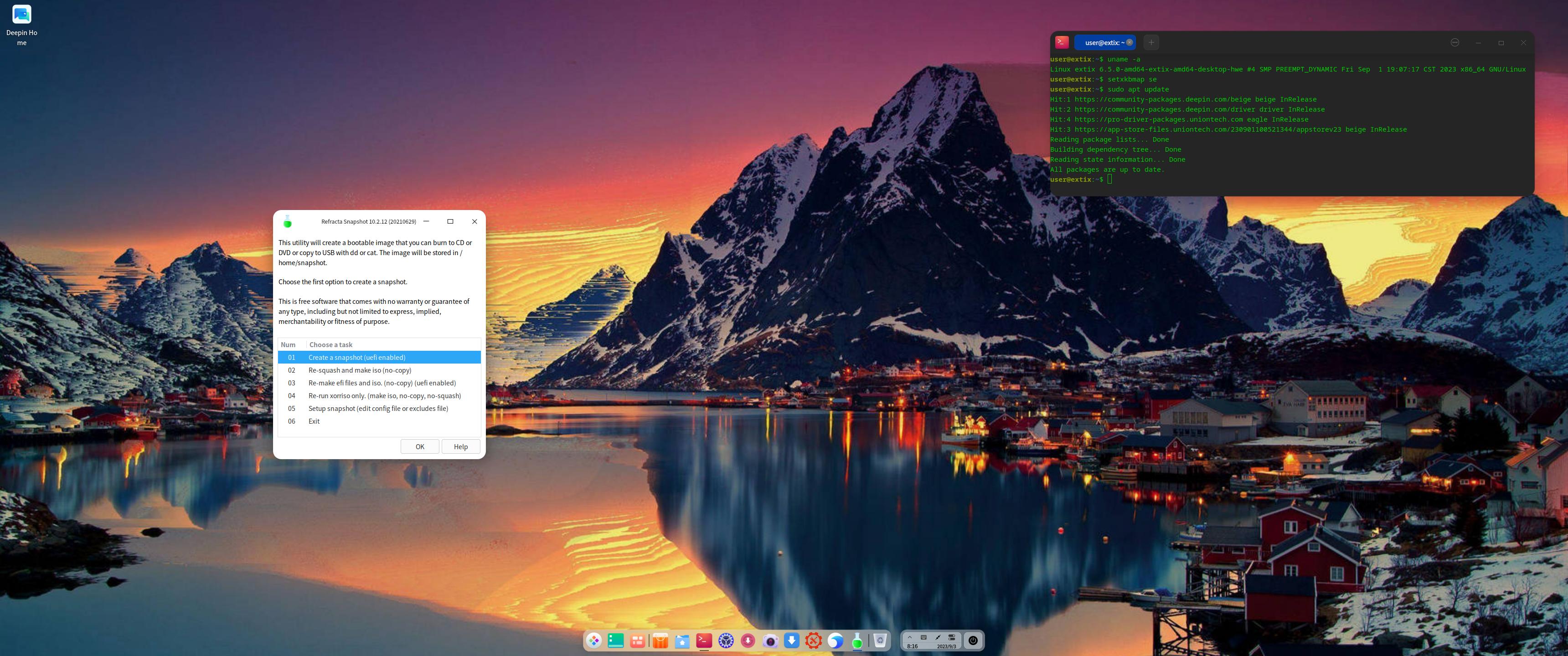
3. ExTiX 23.9 running Refracta Snapshot
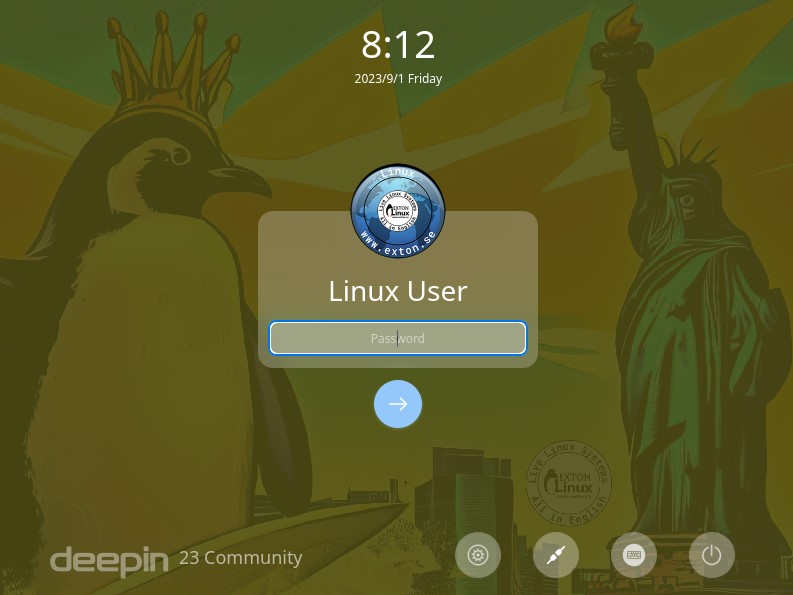
4. ExTiX 23.9 LightDM Login Screen

READ MORE…

Read about my Android-x86 Systems – 11, 10, Pie, Oreo, Nougat, Marshmallow, Lollipop and KitKat at
andex.exton.net – latest is AndEX 11 (with GAPPS), AndEX 10 (with GAPPS) and AndEX Pie 9.0 (also with GAPPS)!
and
about my Android 13, 12, 11, 10, Pie, Oreo, Nougat, Marshmallow and Lollipop versions for Raspberry Pi 4 and 3/2 at
raspex.exton.se
– latest is RaspAnd 13 and 12 (without GAPPS), RaspAnd 11 (with GAPPS) and RaspAnd Oreo 8.1 (also with GAPPS)!
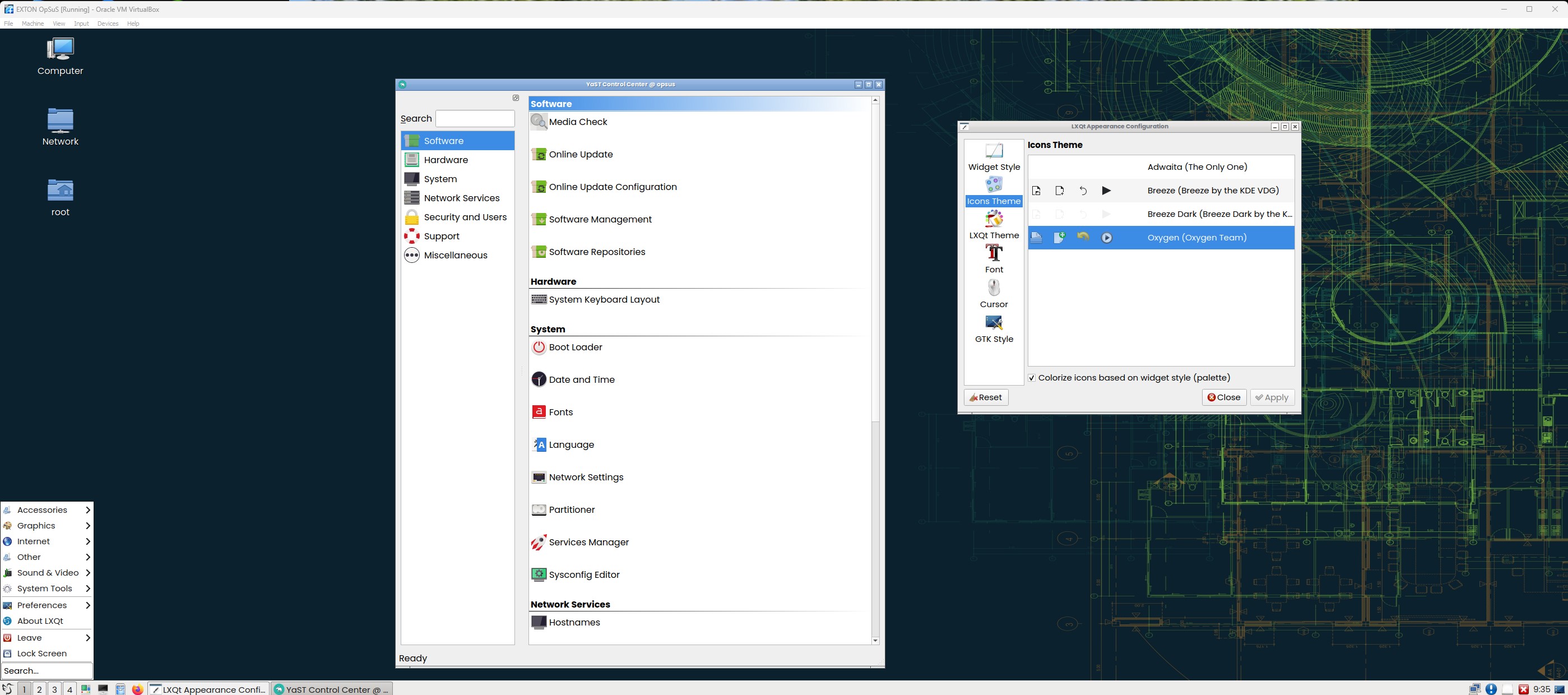
EXTON OpSuS Tumbleweed (openSUSE) 64 bit LXQt 1.2 UEFI Linux Live System – Build 230212

EXTON OpSuS Tumbleweed is based on openSUSE Tumbleweed, which is a rolling distribution. I.e. no need for new installations. Just run the command sudo zypper dup and you will always get the latest stable packages/kernels. The ISO file is only of 1430 MB so you will run the system very fast from a DVD or a USB stick. Even in VirtualBox/VMware directly from the ISO file.

ABOUT EXTON OpSuS for PC’s
EXTON OpSuS Tumbleweed with LXQt 1.2 uses kernel 6.1.10-1. Installed programs: Among many other programs, Firefox, NetworkManager, GParted and Calamares Installer. You’ll run the system as root from the beginning. Root’s password is linux. EXTON OpSuS can easily be installed to hard drive (of those who so desire). For that you shall use Calamares Installer. All programs have been updated to the latest available version as of February 10, 2023.
NOTE1
: If you run EXTON OpSuS on a non-UEFI computer or in VirtualBox/VMware you’ll get a chance to create an ordinary user before you enter the desktop. And also change the password for root. You will see this screen when the boot process is ready.
NOTE2: If you run EXTON OpSuS on a UEFI computer you will (probably) end up in console mode. Log in as root with password linux. Then run the command startx. You will then enter the LXQt 1.2 Desktop. If you do not see a login prompt you shall press Ctrl Alt F2 simultaneously.

The system language is English
.

Enjoy persistence when running the system from a USB stick
You must use the dd-command to achieve persistence. Read about it on the INFO site,

Is EXTON OpSuS LXQt Build 230212 unique?
If you have a look at openSUSE’s official Download site you can see that there is no live LXQt version available.

Why should someone choose EXTON OpSuS/openSUSE?

SCREENSHOTS
1. The LXQt 1.2 Desktop
2. Running EXTON OpSuS in full screen in VirtualBox
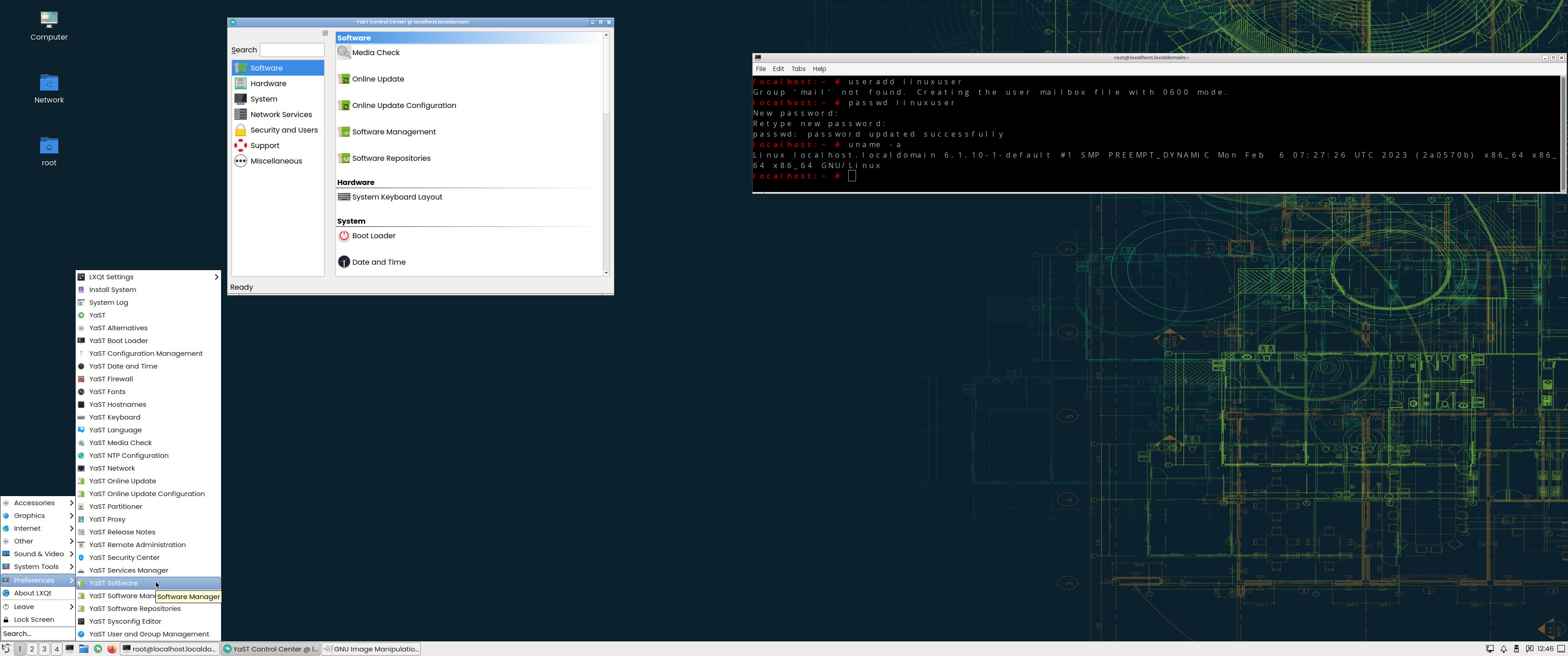
3. Running a zypper command
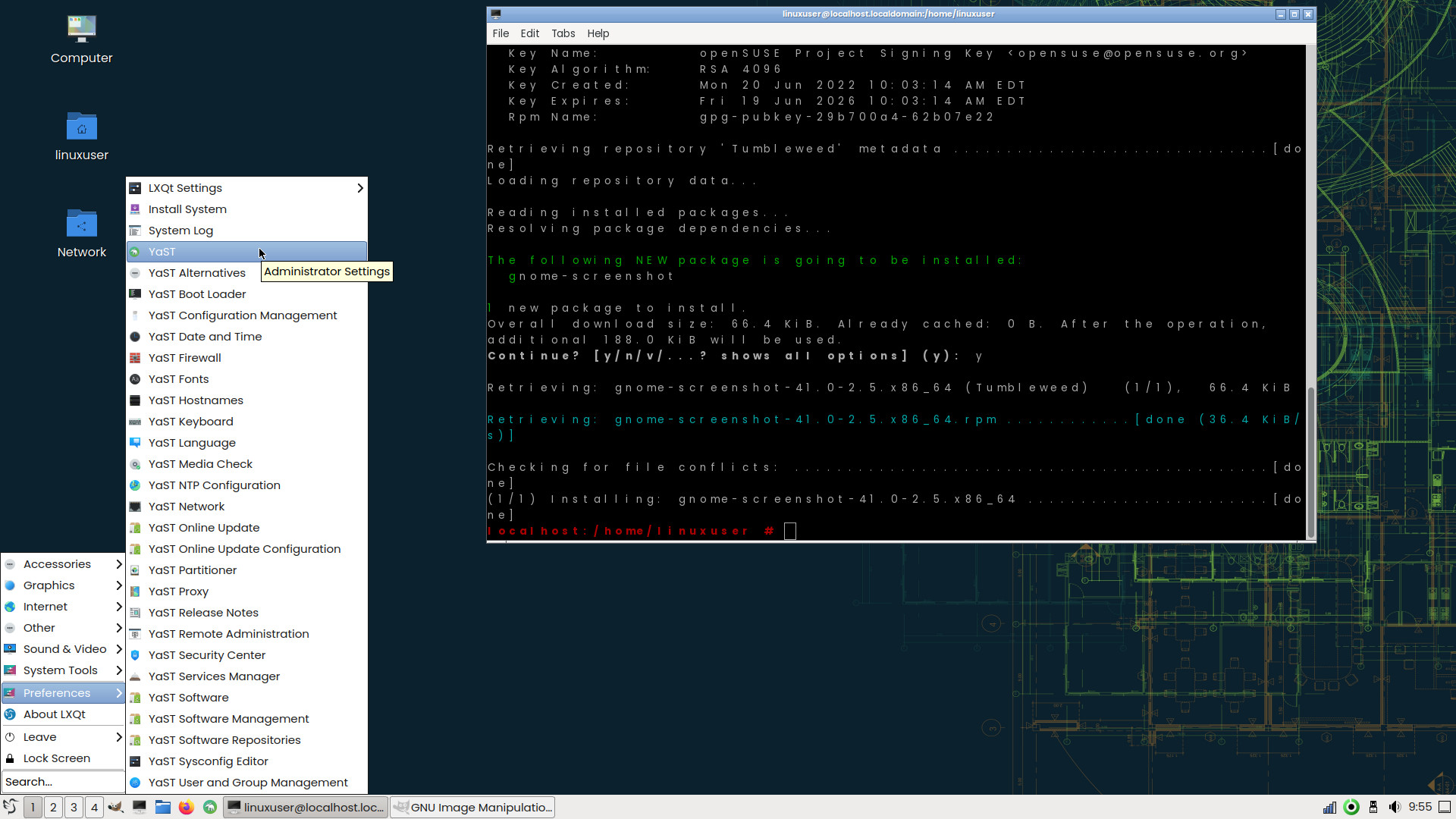
4. Login from LightDM

READ MORE…

Read about my Android-x86 Systems – 11, 10, Pie, Oreo, Nougat, Marshmallow, Lollipop and KitKat at
andex.exton.net – latest is AndEX 11 (with GAPPS), AndEX 10 (with GAPPS) and AndEX Pie 9.0 (also with GAPPS)!
and
about my Android 12, 11, 10, Pie, Oreo, Nougat, Marshmallow and Lollipop versions for Raspberry Pi 4 and 3/2 at
raspex.exton.se
– latest is RaspAnd 12 (without GAPPS), RaspAnd 11 (with GAPPS) and RaspAnd Oreo 8.1 (also with GAPPS)!
Yet another version of RaspEX Kodi 32-bit :: Now with the LXQt Desktop and Kodi 19 “Matrix” stable with the Netflix addon – Build 210301

NEWS 210301 about RaspEX Kodi
I’ve made a new extra version of RaspEX Kodi 32-bit. This version is based on Raspbian (Raspberry Pi OS) and Debian Bullseye (upcoming Debian 11). The LXDE Desktop is replaced with LXQt 0.16.0 which has a more “modern look” than LXDE. Historically, LXQt is the product of the merge between LXDE-Qt, an initial Qt flavour of LXDE, and Razor-qt, a project aiming to develop a Qt based desktop environment with similar objectives as the current LXQt. In RaspEX Kodi Build 210301 I’ve upgraded Kodi to version 19.0 Matrix since it has reached the “stable stage” . It was therefore now possible to install the Netflix addon among many other addons. You can now also much easier install extra repositories. Read about the best Kodi repos 2021.

Boot problems as regards RaspEX Kodi Build 210301

If you can’t boot up the system after installing to the SD card using Rufus 3.13 in Windows it’s because the files /boot/cmdline.txt and /etc/fstab has the wrong content. I.e. the PARTUUID for the card is wrong. Then you’ll have to edit said files. Do it like this.
1. Start up a Linux system (Ubuntu or…).
2. Insert your SD card with RaspEX Kodi installed. It will be seen as /dev/sdb1 (boot partition) and /dev/sdb2 (root filesystem).
3. To find out the correct PARTUUID for /dev/sdb1 and /dev/sdb2 run the command blkid /dev/sdb1 respectively blkid /dev/sdb2
4. Now change to the correct PARTUUID in /boot/cmdline.txt and /etc/fstab on the SD card. Use Leafpad or Mousepad for that. Never LibreOffice writer!

The file cmdline.txt can look like this:
console=serial0,115200 console=tty1 root=PARTUUID=347a28ab-02 rootfstype=ext4 elevator=deadline fsck.repair=yes rootwait quiet splash plymouth.ignore-serial-consoles

The file fstab can look like this:
proc /proc proc defaults 0 0
PARTUUID=347a28ab-01 /boot vfat defaults 0 2
PARTUUID=347a28ab-02 / ext4 defaults,noatime 0 1
# a swapfile is not a swap partition, no line here
# use dphys-swapfile swap[on|off] for that

Study all installed packages in Build 210301…

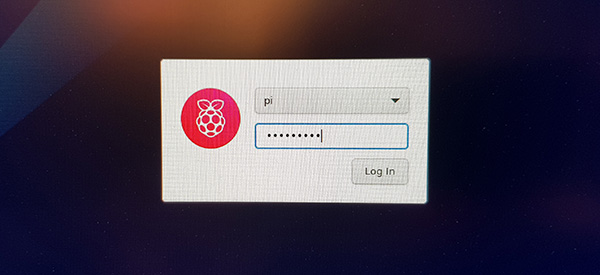
Log in to LXQt or Kodi
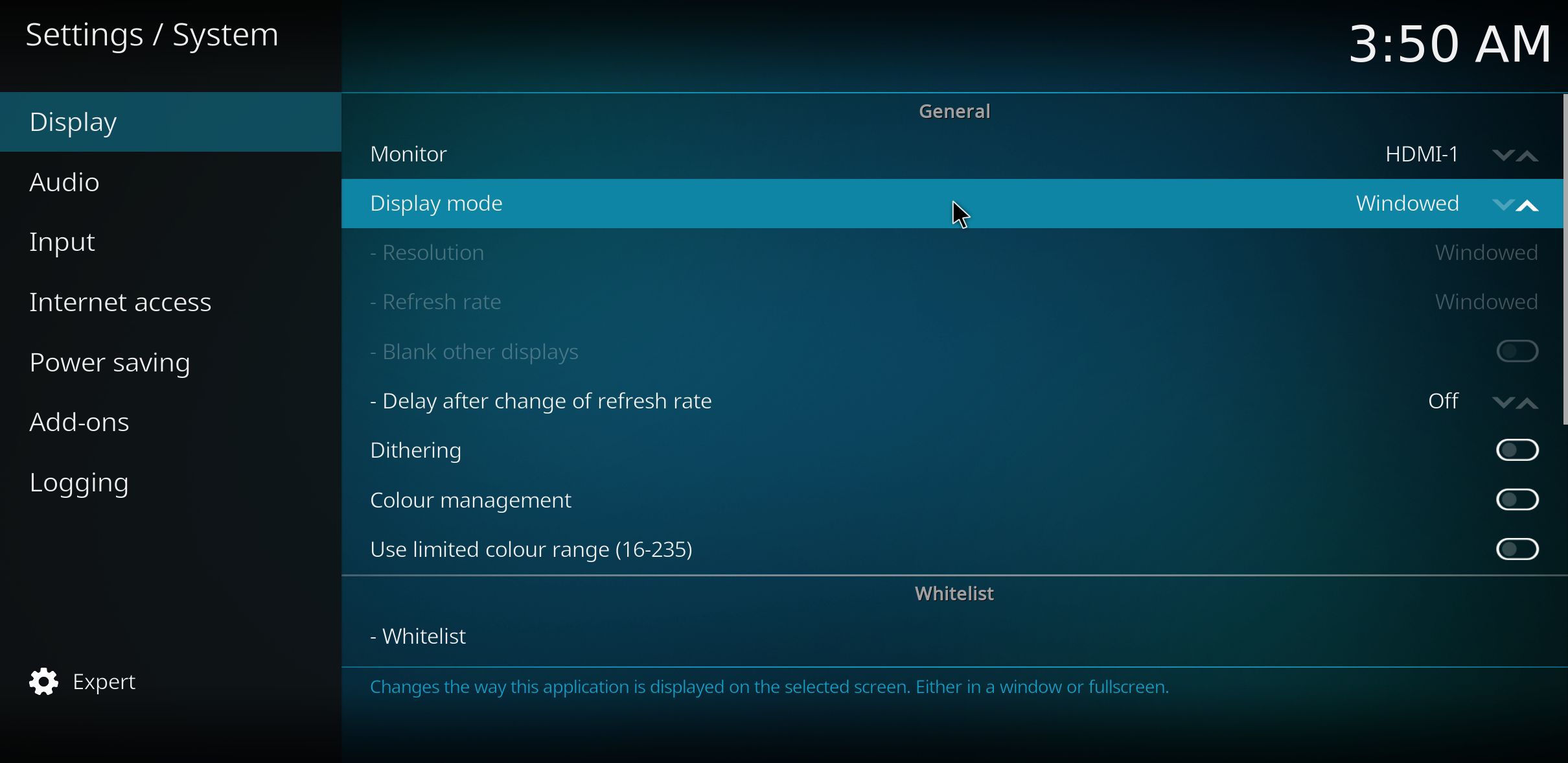
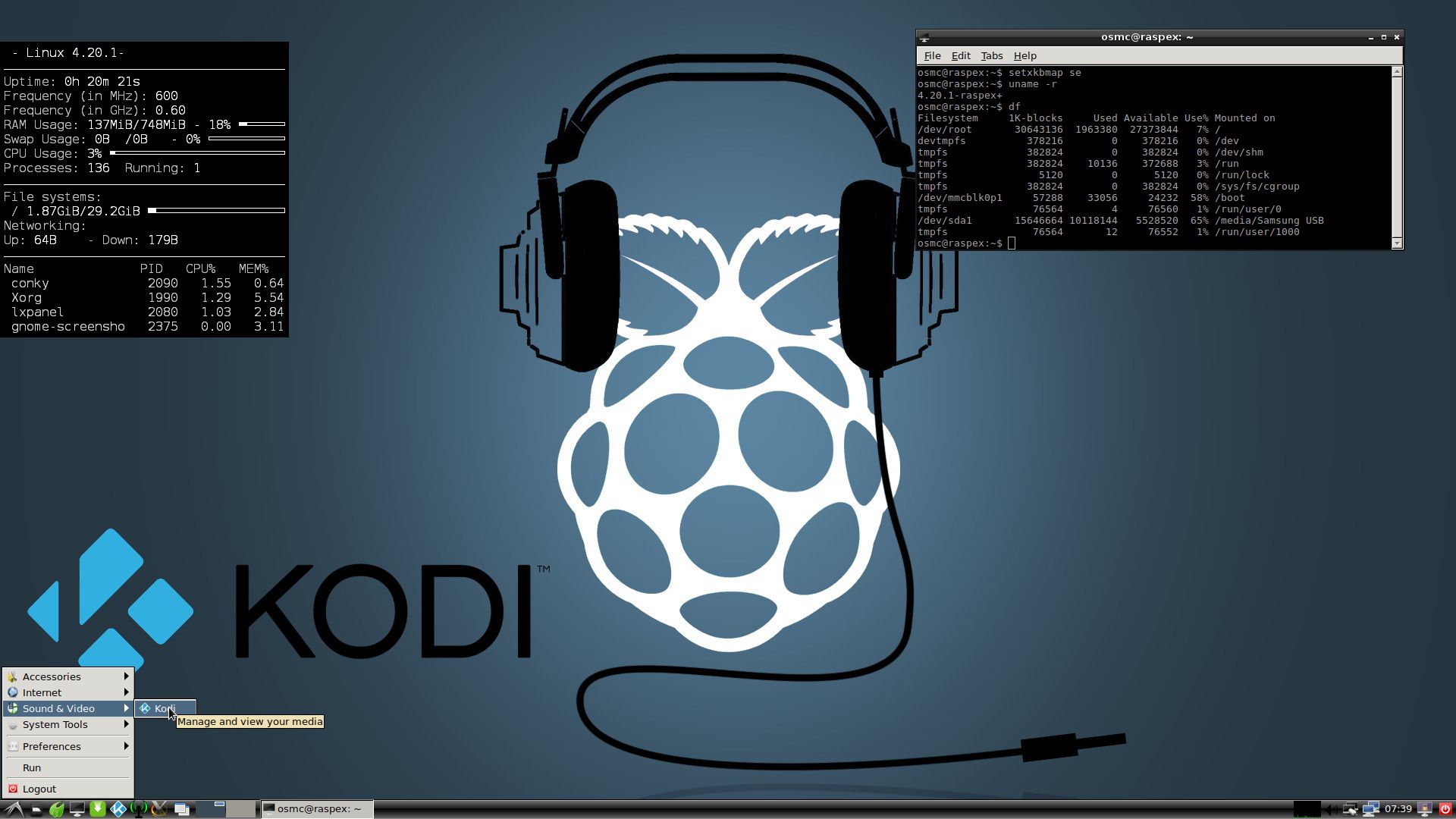
After the boot process is ready you will end up at LightDM‘s login screen. It will look like this – see below. Log in as pi with password raspberry or as root (“other”) with password root. You can log in to Kodi directly from LightDM if you want. While inside LXQt you can change to the Kodi Desktop environment. You can run Kodi on the LXQt Desktop like any other program or run it in full screen. Just change Kodi’s Settings from Windowed to Fullscreen. Watch this screenshot.

Expand the filesystem on the SD card
If you install many new big programs and/or download large files (for example videos) you may run out of space on the SD card. That is best fixed by running the following command: sudo raspi-config. Click on “Advanced Options” and choose A1 Expand Filesystem.
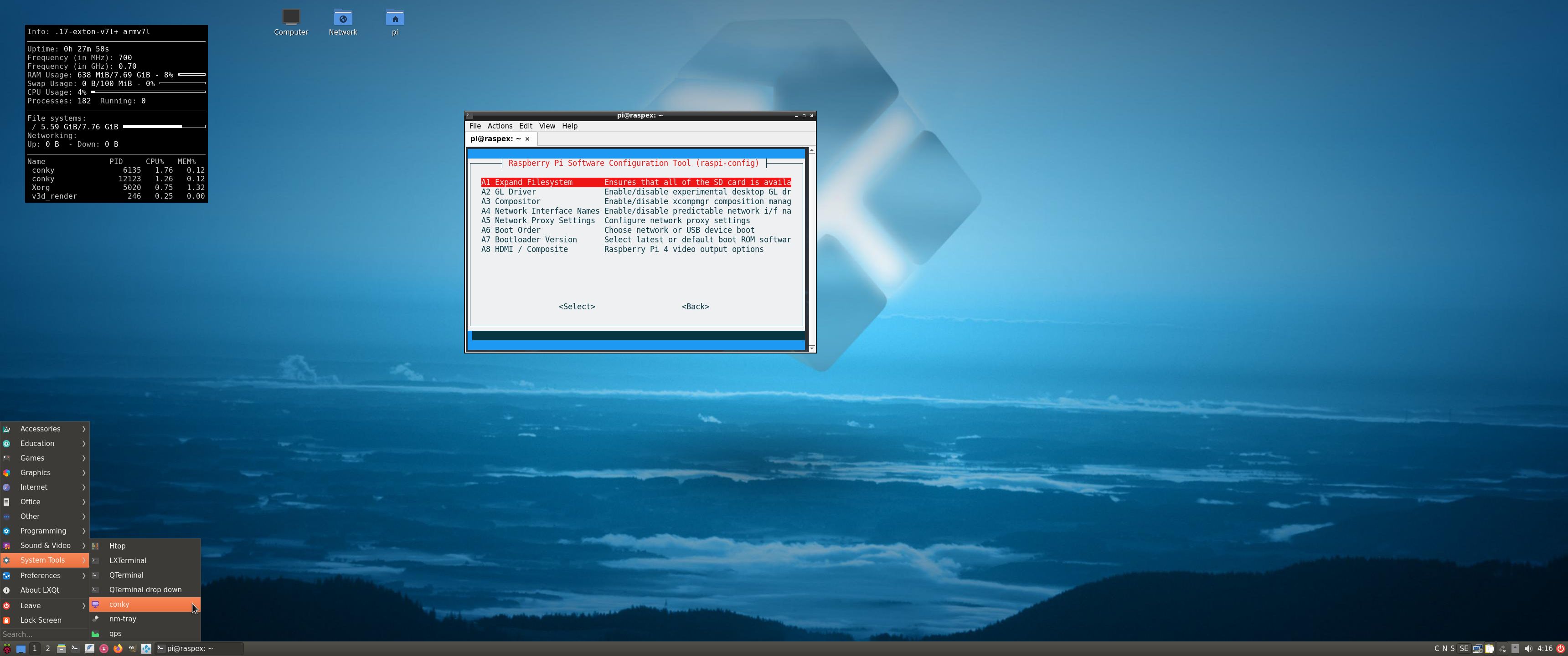
NOTE: That’s all you have to do. Just wait for the script to fix everything. If you use a SD card of 64 GB all the space on it will be used afterwards. Watch a screenshot when raspi-config is running.
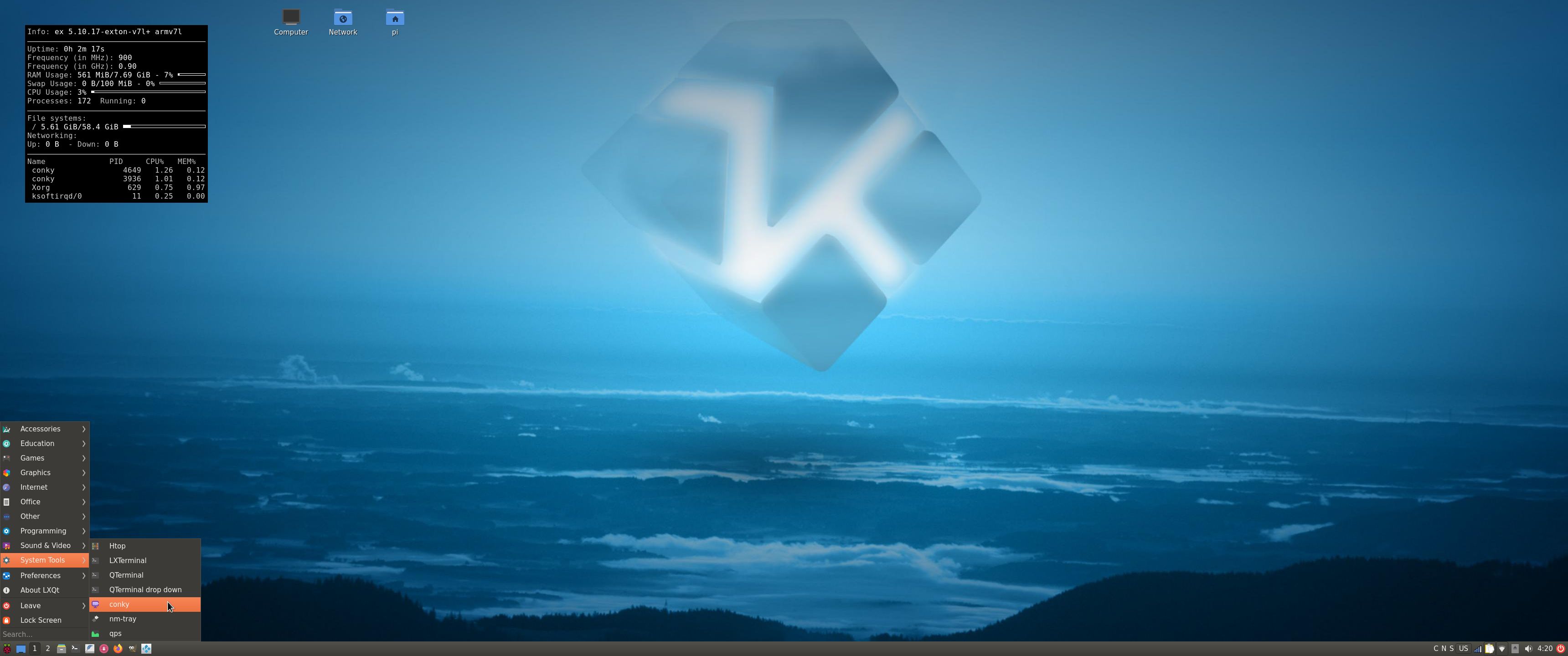
1. Screenshot showing filesystem size before resizing
2. Screenshot showing filesystem size after resizing

Used kernels
5.10.17-exton-v7l+ (for Rpi 4) and 5.10.11-v7+ (for Rpi 3 and 2).

SCREENSHOTS
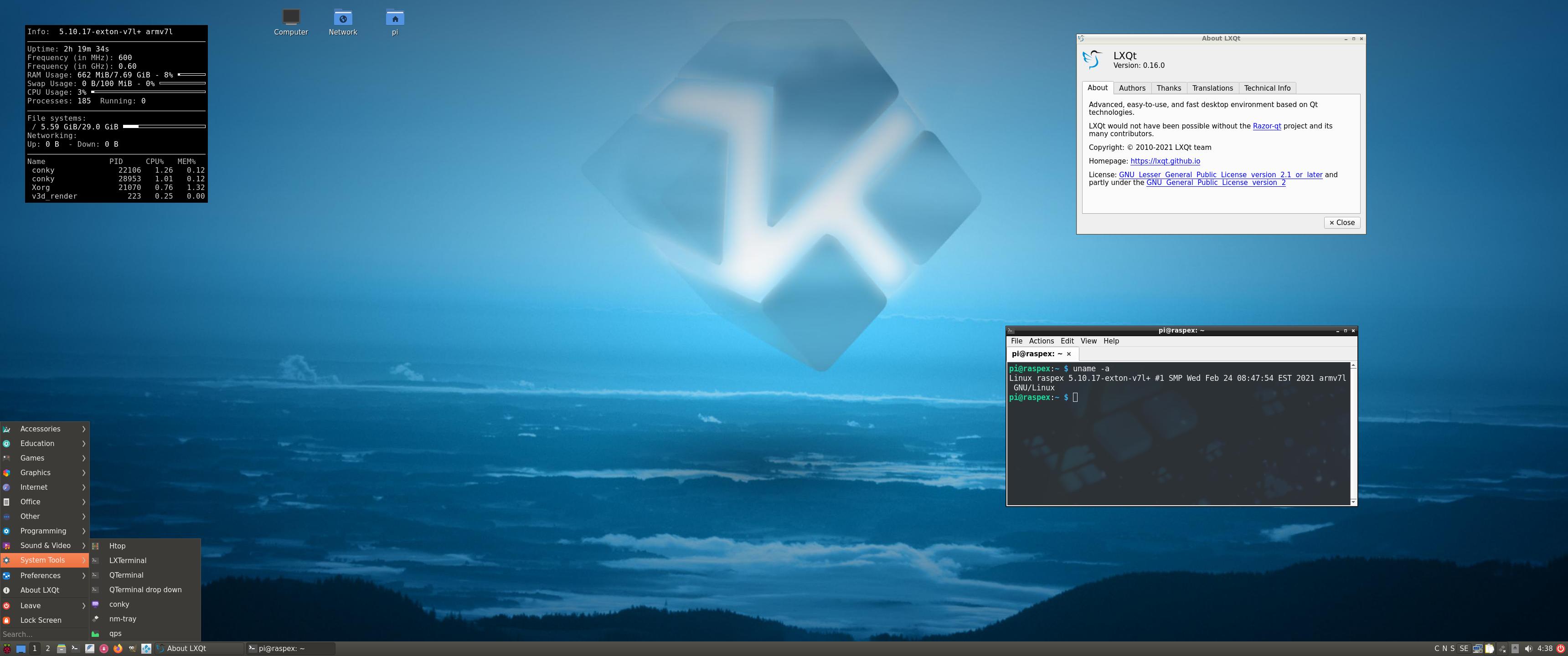
1. The LXQt Desktop running as user pi
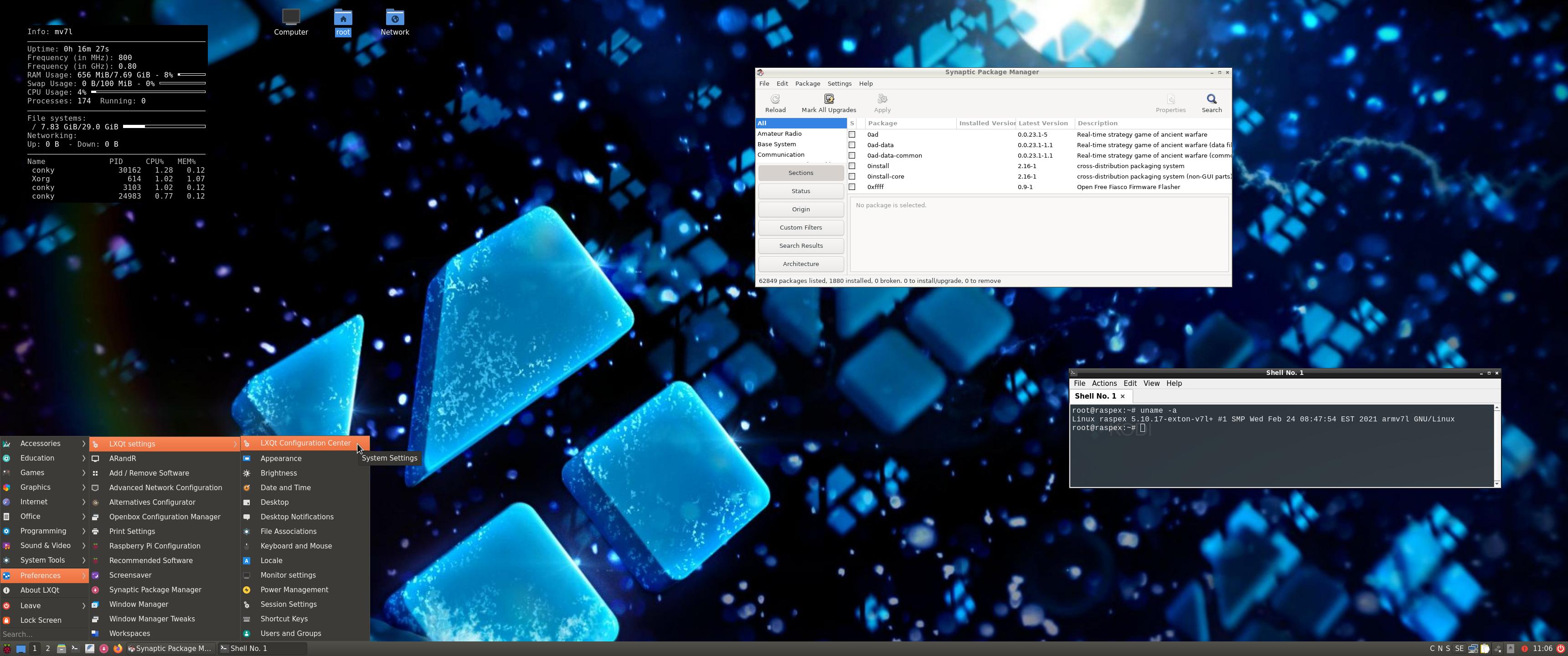
2. The LXQt Desktop running as root

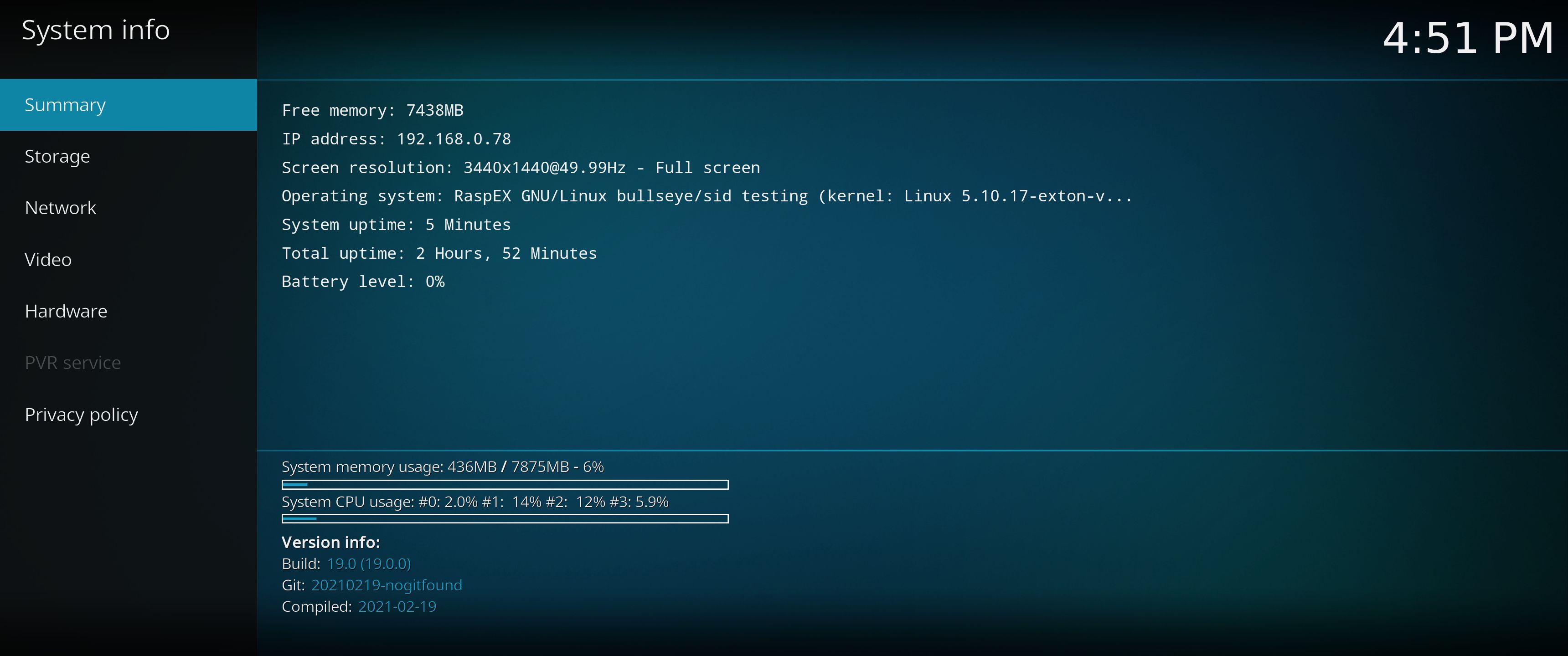
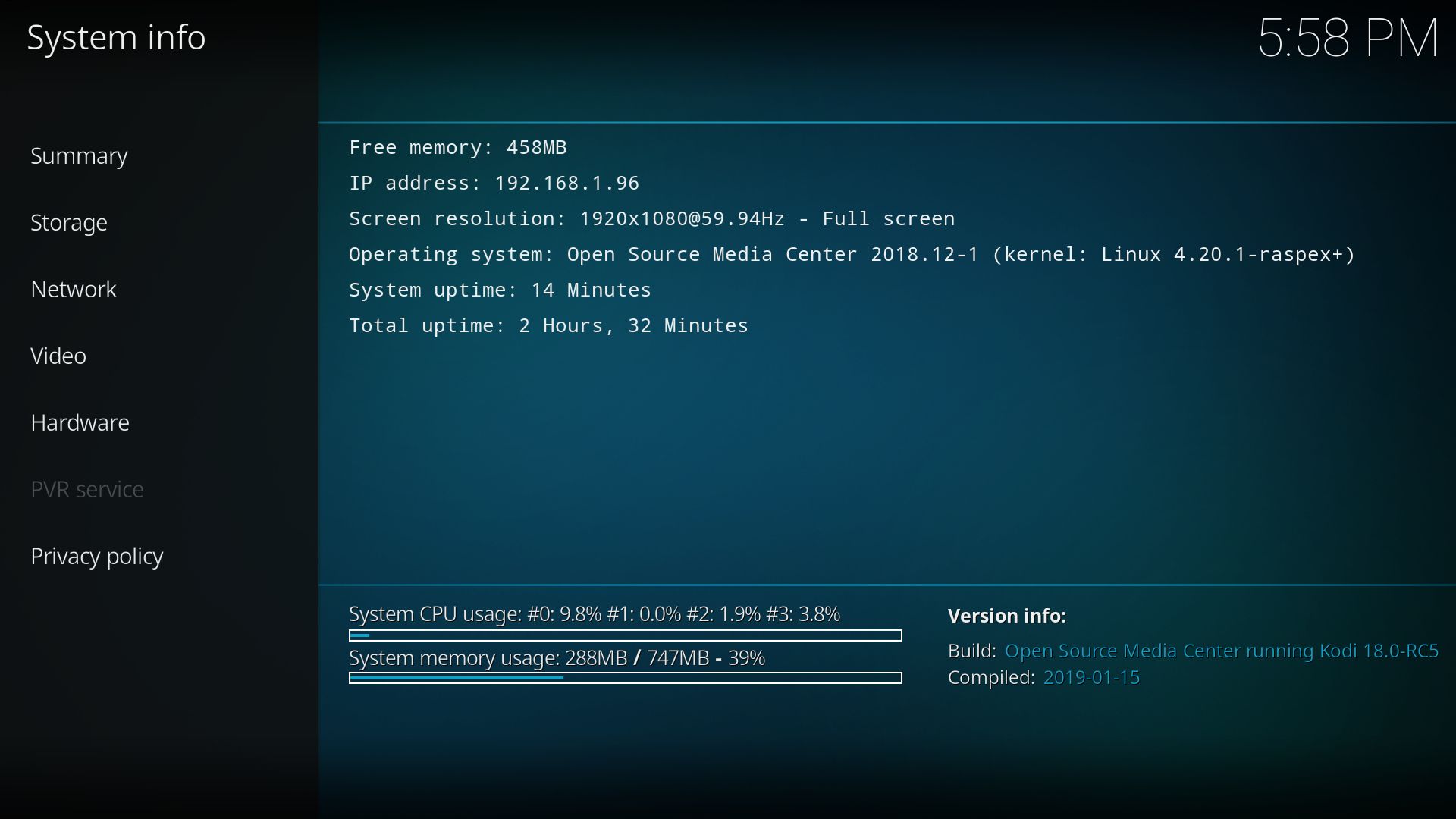
3. Kodi 19.0 system info
4. Kodi running on/within the LXQt Desktop
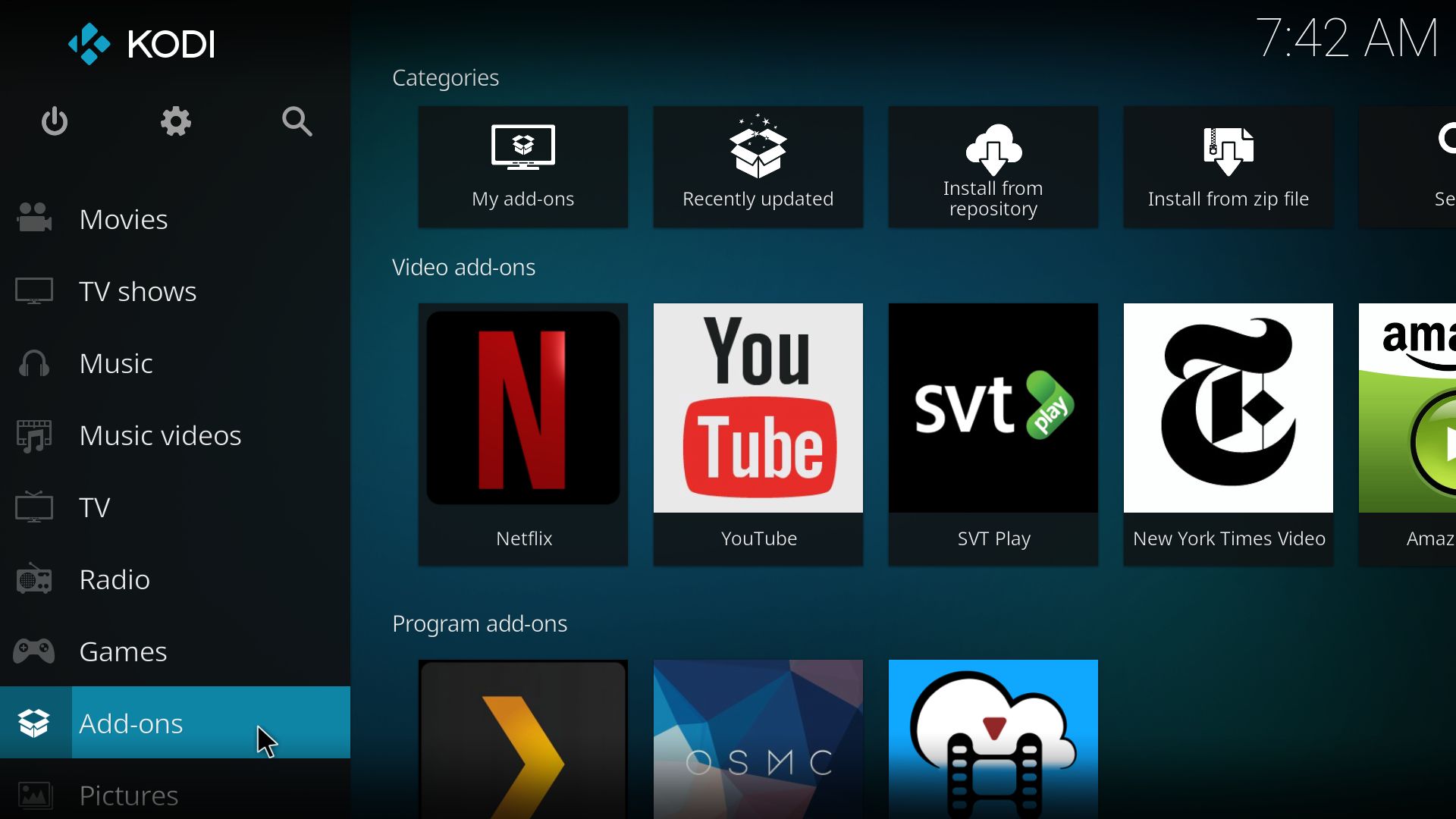
5. Kodi showing some addons
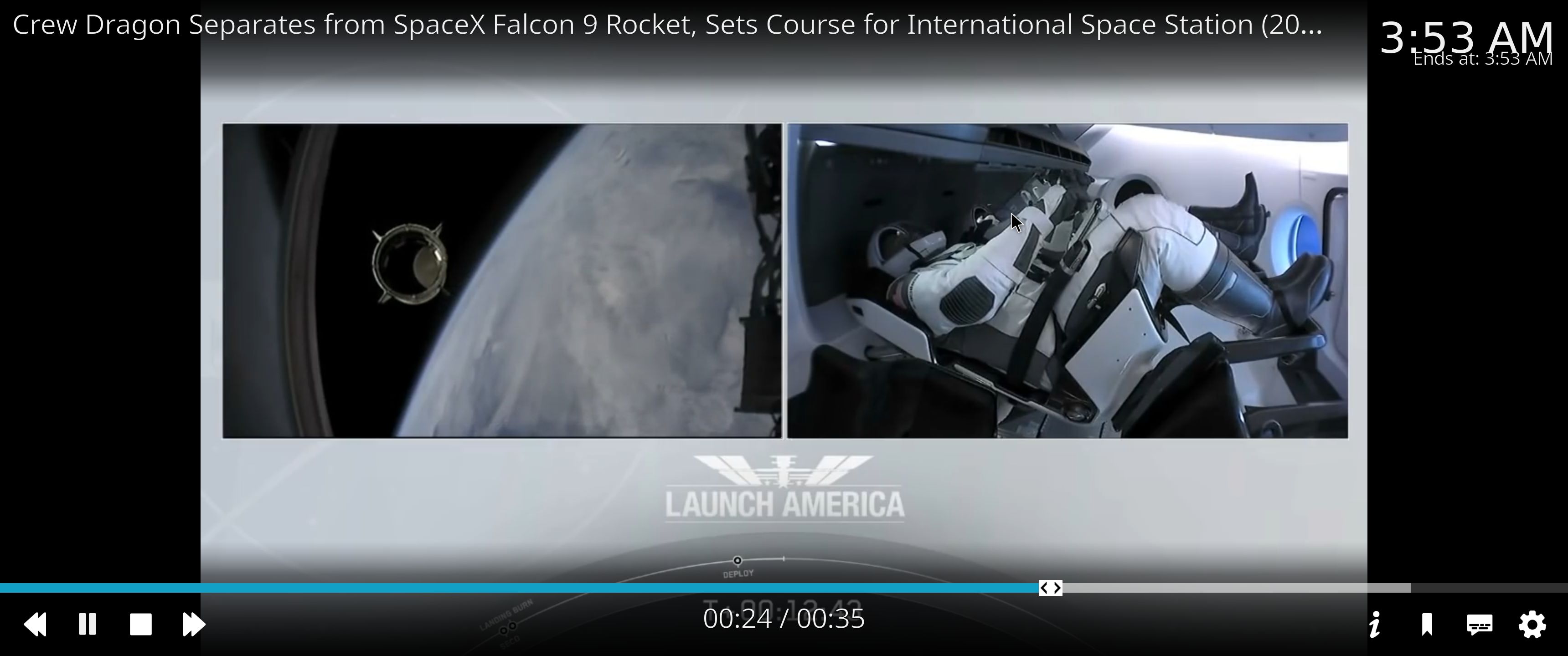
6. NBC Sport addon running
7. NASA addon running
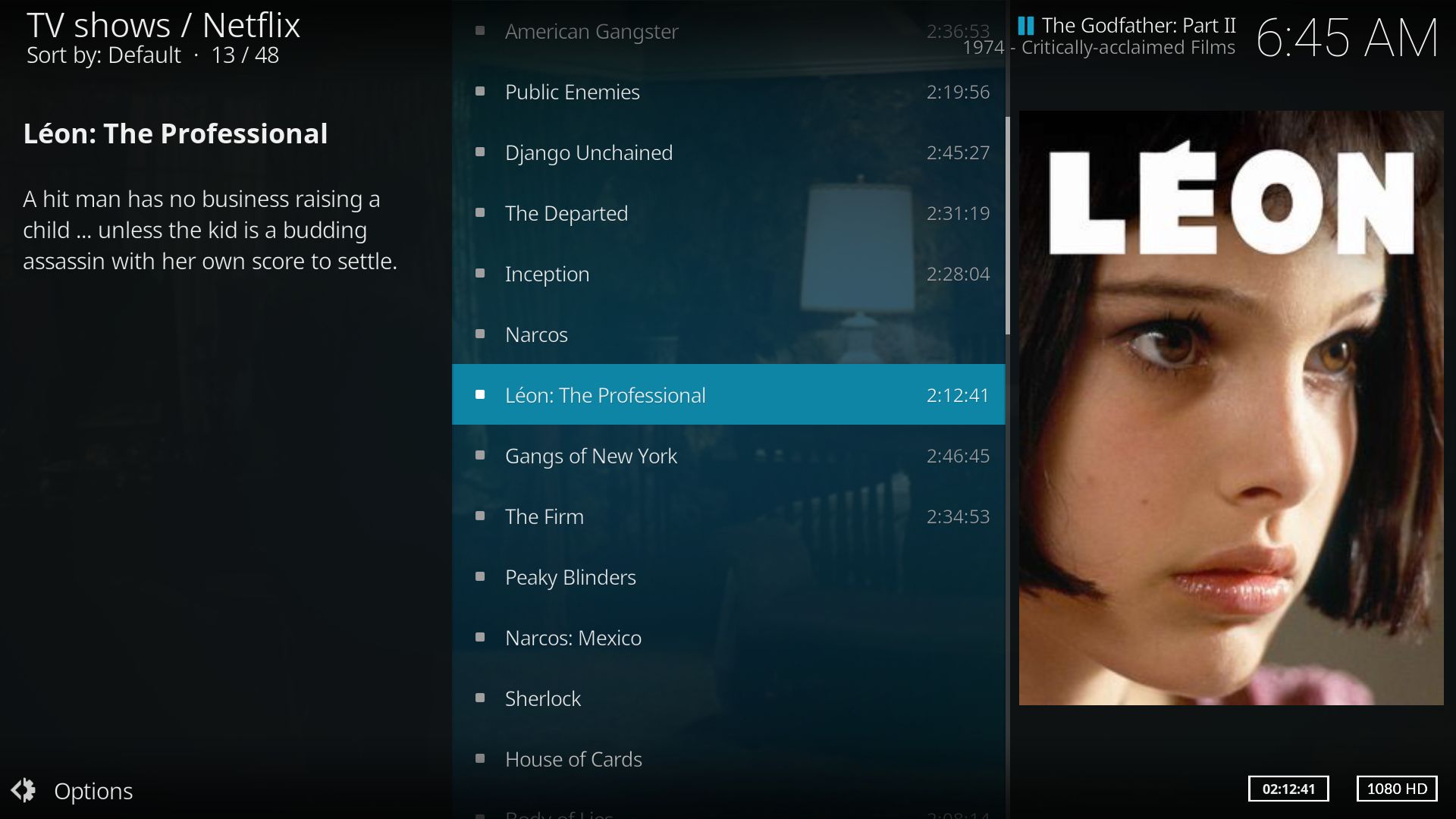
8. Netflix addon running
9. Kodi running using a special skin

READ MORE…

Read about my Android-x86 Systems – 10, Pie, Oreo, Nougat, Marshmallow, Lollipop and KitKat at
andex.exton.net – latest is AndEX 10 (with GAPPS) and AndEX Pie 9.0 (also with GAPPS)!

and

about my Android 11, 10, Pie, Oreo, Nougat, Marshmallow and Lollipop versions for Raspberry Pi 4 and 3/2 at
raspex.exton.se
– latest is RaspAnd 11 (without GAPPS) and RaspAnd Oreo 8.1 (with GAPPS)!
RaspEX Kodi Rpi3 with LXDE/OSMC Desktops and Kodi 18 RC5 Media Center “Leia” with Netflix, Plex and Amazon Video addons – Build 190117

ABOUT RaspEX Kodi
RaspEX Kodi Build 190117 with LXDE/OSMC Desktops is made especially for the new Raspberry Pi 3 Model B+, but can of course also be used on a Raspberry Pi 3 Model B and a Raspberry Pi 2 Model B. OSMC is based on Debian and Kodi Media Center. In RaspEX Kodi I’ve added the LXDE Desktop with many useful applications such as Wicd and NetworkManager. Makes it easy to configure your wireless network. I’ve also upgraded OSMC to a BETA version (Kodi 18 RC5 Leia), which makes it possible to include useful addons such as Netflix, Plex and Amazon Video. Which I’ve done. Kodi 18 RC5 was released 190114. Study all included packages in RaspEX Kodi.

Kernel
Kernel 4.20.1-exton is used.

RaspEX Kodi performance

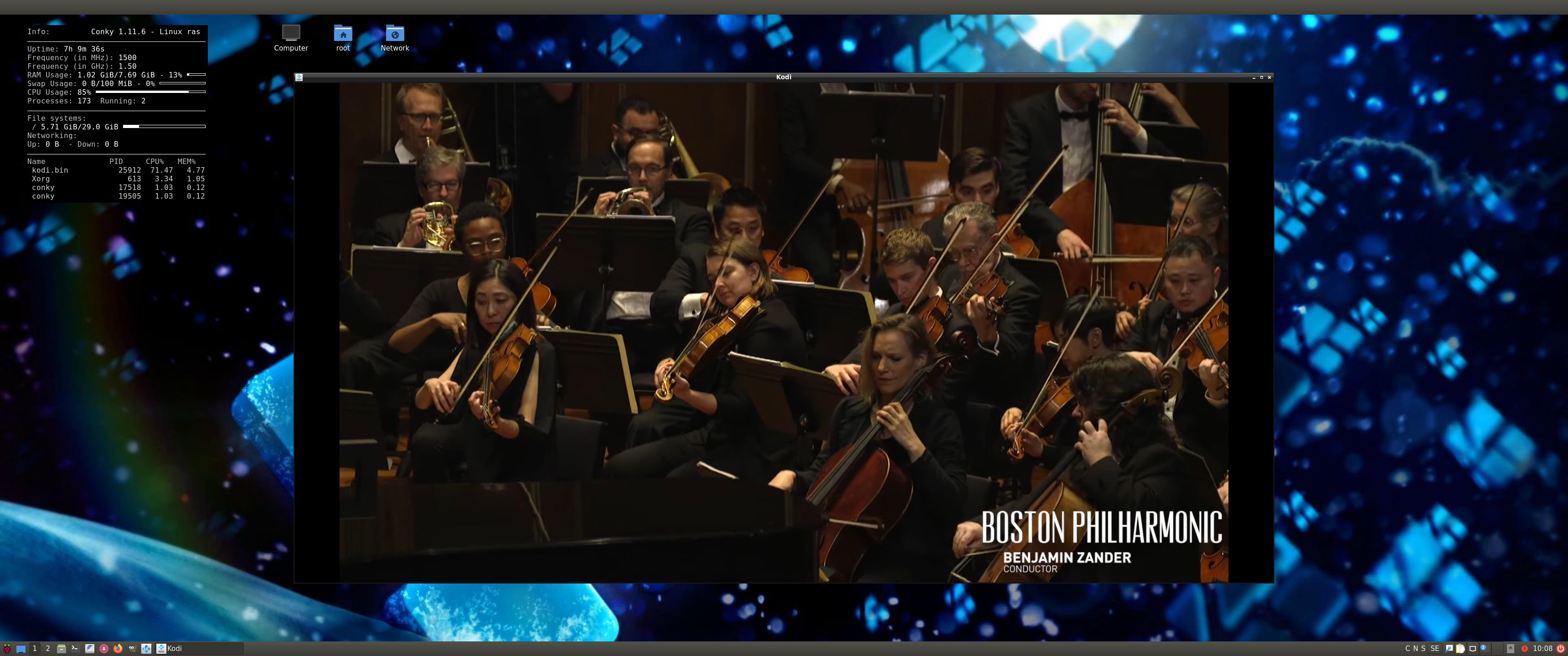
RaspEX Kodi is a very fast and responsive Rpi system. Much due to very low memory (RAM) usage. About 100 MB as this screenshot shows. I’ve said that RaspEX LXDE Build 181015 is very fast. RaspEX Kodi with OSMC Desktop is even faster especially if you use the new Raspberry Pi 3 Model B+ to run it. The video and sound quality is also very very good. Even while running RaspEX Kodi on big TV screens. I.e. you can really enjoy Netflix and YouTube running on your Rpi mini computer!

SCREENSHOTS
1. Running Kodi
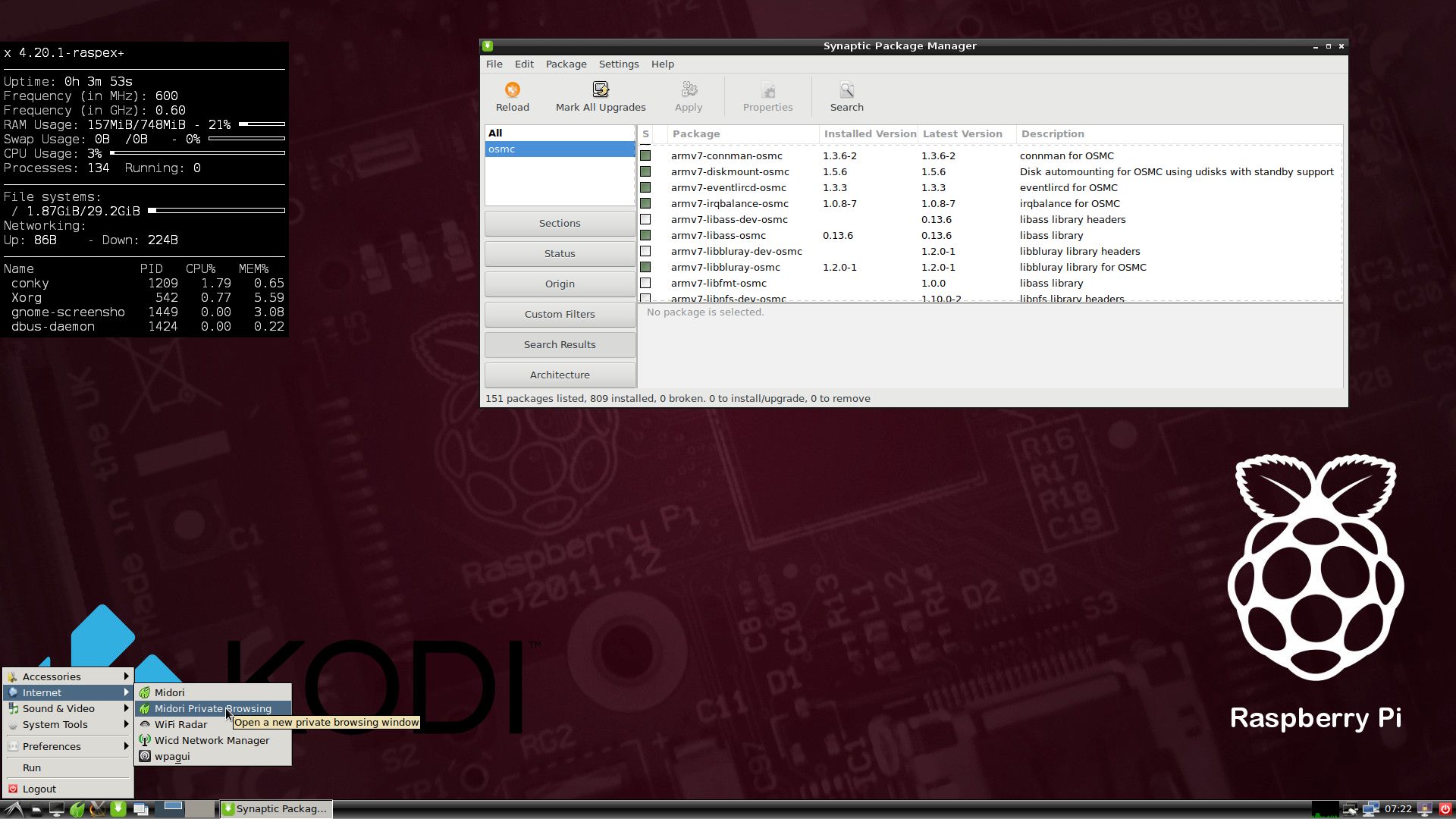
2. The LXDE Desktop logged in as the ordinary user osmc
3. The LXDE Desktop logged in as root (superadmin)
4. Netflix running showing very good video quality – 1
5. Netflix running showing very good video quality – 2
6. YouTube running showing very good video quality
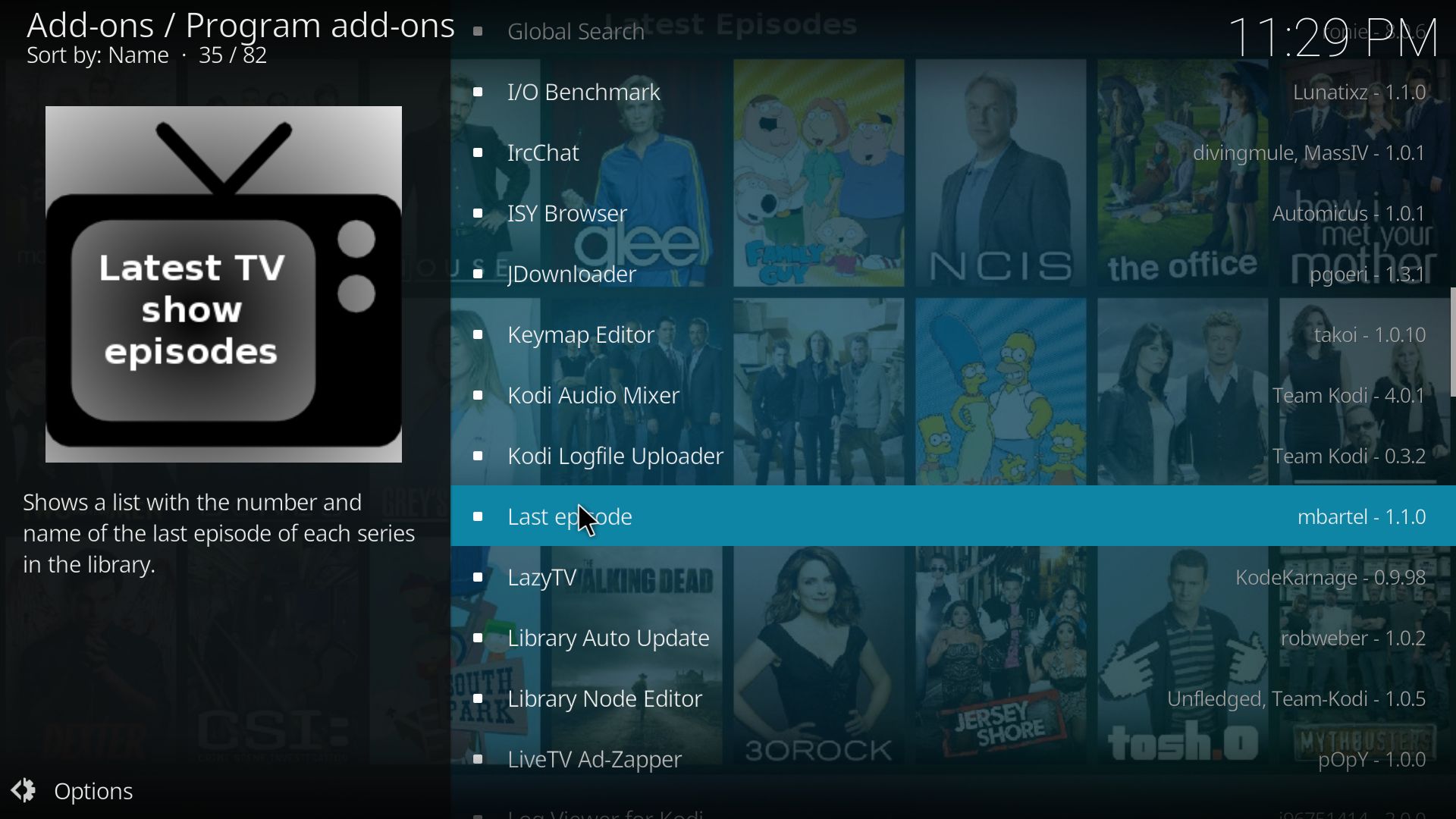
7. Choosing program addons in Kodi
8. RaspEX Kodi OSMC running INFO

DOWNLOAD
This RaspEX build can’t be downloaded anymore. I have, h
owever, made a replacement for Build 190117.
RaspEX Kodi Build 190124 is a replacement for RaspEX Kodi with OSMC, which was released 190117. Sam Nazarko (founder of OSMC) contacted me 190118 claiming that I was “violating” his rights to the trademark OSMC and the rules in GPLv2. I don’t think I did, but I’m also very tired. Therefore I made a new version of RaspEX Kodi without any traces of OSMC. I would say that my new version is as good as the old one. I.e. excellent video and sound performance both in Kodi and LXDE.

READ MORE…