Tag Archives: Spotify

RaspAnd 6.0.1 (Marshmallow) for Raspberry Pi 3 and Pi 2 Build 160717 (v. 3) with GAPPS, Wifi, Bluetooth and YouTube working

raspand-20160625-clashofclans-smallRaspAnd Marshmallow Build 160717 is an Android 6.0.1 Marshmallow system which can run on Raspberry Pi 3 and Pi 2. I have finally managed to include Google Play Store and other GAPPS. This version of RaspAnd is faster and more responsive than RaspAnd Lollipop Build 150924/160315.

NEWS 160717 about RaspAnd Marshmallow
Build 160717 of RaspAnd Marshmallow replaces my first version from 160625 and my second build from 160711. The screen problems in build 160625 was corrected in my second build from 160711. In this third build from 160717 also YouTube works as expected.

More about the news in Build 160717
1. Build 160717 uses a new kernel – 4.4.15-exton.
2.
Google Play Services has been upgraded from version 8.4.87 to 9.2.56. The latest version by 160717.
3. YouTube has been upgraded to version 1.3.11. The latest version by 160717. The video performance is far better in RaspAnd Marshmallow Build 3 than in previous versions. You can watch almost all movies in YouTube with acceptable quality.
4. Clash of Clans works even better in Build 3.
5. The sound quality is excellent in Build 3. Especially is you connect loudspeakers to your Rpi. Maybe because of the new kernel…
6. Bluetooth works as expected.
7. Most important: With Google Play Services in latest version (9.2.56) you are not dependent on Google Play Store. You can install almost all GAPPS and other apps via Aptoide App Manager.

Wifi and Bluetooth support
This new version of RaspAnd has support for Wifi and Bluetooth (on Raspberry Pi 3). RaspAnd runs very well on the new Raspberry Pi 3 computer. The system runs also on the “old” Raspberry Pi 2 computer.

Installed apps
The following useful apps are pre-installed in RaspAnd Marshmallow: Google Play Services 9.2.56, Google Play Store 6.0.2, Aptoide App Manager (as an alternative to Google Play Store), Terminal Emulator, Aida64, WinZip, ES File Explorer, Rotation Control Pro, Opera 36.2.2126, Spotify 5.6.0.674, Bluetooth File Transfer, YouTube 1.3.11 and the popular (?) game Clash of Clans 8.332.14.

YouTube performance
YouTube works alright in RaspAnd Marshmallow Build 3. You can watch almost all videos. I.e. normally you will hear the sound very well, but some the movies won’t play or play very slow with strange colors.

Spotify
Spotify works very well in RaspAnd Marshmallow. Just log in and play your favorite music!

Screenshots

Screenshot 1 – Google Play Store running

Screenshot 2 – RaspAnd’s Desktop

Screenshot 3 – AIDA64 showing the system

Screenshot 4 – Clash of Clans running (very well)

Screenshot 5 – Wifi connection

Screenshot 6 – Bluetooth connection

Screenshot 7 – Setting permissions for Google Play Services

Screenshot 8 – Using ES File Explorer

Screenshot 9 – Using Opera Web Browser

Screenshot 10 –  Using a big TV (55″) as monitor – Home screen

Screenshot 11 – Using a big TV (55″) as monitor – Running Spotify

Screenshot 12 – Installing the app TuneIn Radio via Google Play Store

Screenshot 13 – Installing VLC 2.0.3 via Google Play Store

READ MORE…

RaspEX for Raspberry Pi 3/2 Build 160703 – based on Ubuntu 16.04 – with OpenCPN 4.4.0 pre-installed

raspex-16.04-opencpn-4.4.0-touchscreen-20160702-smallRaspEX – Build 160703 based on Ubuntu 16.04 – with OpenCPN 4.4.0 (latest version) – especially made for Raspberry Pi 3

OpenCPN is a free software (GPLv2) project to create a concise chart plotter and navigation software, for use underway or as a planning tool. OpenCPN is developed by a team of active sailors using real world conditions for program testing and refinement. Read about the new features in OpenCPN 4.4.0 (released 160613)…

Replacement
This build (160703) replaces build 160308. Ubuntu has been upgraded to version 16.04 and OpenCPN to version 4.4.0 – latest. Build 160703 is made especially for Raspberry Pi 3, but can also be used on Raspberry Pi 2. The Desktop environment LXDE is used. The “Lightweight X11 Desktop Environment” is an extremely fast-performing and energy-saving desktop environment. LXDE uses less CPU and less RAM than other environments. It is especially designed for cloud computers with low hardware specifications, such as netbooks, mobile devices (e.g. MIDs) or older computers.

ABOUT RaspEX Build 160703
RaspEX is a Linux ARM system for Raspberry Pi 3 and Pi 2. It is based on Debian Jessie (Debian 8.5), Xenial Xerus (Ubuntu 16.04) and Linaro (Open Source software for ARM SoCs). In this new version (160703) I’ve installed OpenCPN 4.4.0 from source.

Read this OpenCPN Review….

Watch a YouTube video that shows the performance of OpenCPN on a Raspberry Pi…
NOTE
: Please don’t ask me technical questions about how to use OpenCPN. I’m no expert on OpenCPN. You can search the Internet for answers. There is a lot written about OpenCPN and Raspberry Pi. The Cruisers Forum (World Cruising and Sailing Wiki) is a good starting point.

The 7″ Touchscreen Monitor for Raspberry Pi
To my great joy also this version of RaspEX work together with the 7″ Touchscreen Monitor for Raspberry Pi “out of the box”. Watch this screenshot.

Installed packages
Besides from LXDE and OpenCPN a lot of ordinary Debian/Ubuntu packages are pre-installed. I can mention Firefox, Chromium Web Browser, Synaptic Package Manager and Gimp. Study the full package list of 160703…

SCREENSHOTS
1. RaspEX Build 160703 with OpenCPN 4.4.0 running using  the 7″ Touchscreen Monitor for Raspberry Pi
2. RaspEX Build 160703 with OpenCPN 4.4.0 – Boston
3. RaspEX Build 160703 with Spotify and a virtual keyboard
4. RaspEX Build 160703 showing the Desktop and Network connections
5. RaspEX Build 160703 using Samba (connection with my Windows computers in my network) running
6. OpenCPN World Map (old version of OpenCPN)
7. OpenCPN Florida – Cape Canaveral (old version of OpenCPN)
8. OpenCPN New York – Approaches to New York (old version of OpenCPN)
9. OpenCPN Stockholm Archipelago (old version of OpenCPN)

Compatibility :: July 2016
Unfortunately not all systems made for Raspberry Pi 2 will run on the new Pi 3. They need to be upgraded with a new kernel. I therefore have to upgrade the systems I distribute. I.e. RaspEX, RaspEX with OpenCPN, RaspAnd Lollipop, RaspAnd Marshmallow  and RaspArch. I have now (160703) upgraded all systems. Read about the new Raspberry Pi 3…

READ MORE….

Chromium OS – Exton Build 160525 – with YouTube and Spotify working fast and responsive

chromium-osAbout ChromX
I have compiled Chromium OS from source. Just for fun. Chromium OS is an open-source project that aims to build an operating system that provides a fast, simple, and more secure computing experience for people who spend most of their time on the web. My Chromium OS Build 160525 is for all 64 bit “normal” Desktop computers and laptops. If you have unusual hardware you could check out ArnoldTheBat’s special Chromium OS builds.

How do I run Chromium OS?
Normally you run Chromium OS from a USB stick, but the system can also be installed to hard drive. Could be useful if you want to bring new life to an old computer. Be aware of the fact that Chromium OS can’t be installed together with other Linux systems (or any other OS). It will “take” the whole disk.

The difference between Chromium OS and Google Chrome OS
Chromium OS is the open source project, used primarily by developers, with code that is available for anyone to checkout, modify, and build.
Google Chrome OS is the Google product that OEMs ship on Chromebooks for general consumer use.

Used kernel
4.4.4

Install my Build 160525 to a USB stick of at least 6 GB
A. In Windows you can use Win32DiskImager. It will look like this. (Unzip chromiumos-amd64-base-exton-454mb-160525.zip first).

chromiumos-win32diskimager

B. In Windows you can also use an app (Chromebook Recovery Utility) in Google Chrome. Do it like this.
1. Start by downloading your Chromium OS (chromiumos-amd64-base-exton-454mb-160525.zip) installation file. Do not unzip the file, this may cause issues with the USB creation process.
2. Open the Chrome web browser and install the Chromebook Recovery Utility plug-in from the Google Chrome Web Store. To install it, visit the link and click “Add to Chrome.”
3. After the plug-in has installed, click “Launch” from the Web Store page to open the Chromebook Recovery Utility.
4. In the Recovery Utility, click the gear icon on the upper right-hand side and select “Use Local Image”.
5. Find and select the chromiumos-amd64-base-exton-454mb-160525.zip file that you located in Step 1.
6. When prompted, insert an 8 or 16 GB USB device that you want to turn into a Chromium OS installer. Make sure it has no important files on it, as it will be completely erased. Select your USB drive from the drop-down menu and click “Continue” and then “Create Now.”
7. The process of creating your Chromium OS USB installer will take around 20 minutes. Some Windows installations may display a security prompt, click “allow” to let the process proceed. Note: The progress bar in the Chrome Recovery Utility may go over 100% and show incorrect time estimates. This is not a problem.
8. When the process has completed you will see a green check box – you can now remove your Chromium OS USB installer and use it! You can create as many additional USB installers as you want using the process above.

USB installation in Linux
In Linux you shall open up a terminal and run this command: sudo dd if=chromiumos-amd64-base-exton-3600mb-160525.img of=/dev/sdX bs=4M
(You shall of course replace /dev/sdX with for example /dev/sdb or /dev/sdc. Check it carefully before you run the above command).

Notes about USB sticks
It appears that not all USB sticks are suitable for topical purposes. I.e. they can not be made bootable. I myself have experience of brands Kingston DataTraveler, SanDisk Ultra USB 3.0, SanDisk Extreme USB 3.0 and Sony Micro Vault. The first three works (for me). You shall not use USB sticks of older model. They may work, but mostly bad. If you – after the installation of Chromium OS to the USB stick –  get different error messages when you try to run the system from the stick it is often because the stick is not “good enough”.

Install to hard drive
If you want to install the system to your hard drive, follow the instructions here and here. Beware of the warnings noted in the links! When prompted for a password for the chronos user, use “exton” (without the quotes!).

USB persistence
All your system changes will (of course) be automatically saved directly on the USB stick.

Updates/upgrades
You do not have to take any action in order to keep your system up to date. Chromium OS will itself check for updates each time it is launched and automatically install them.

Enable Spotify
Flash has to be installed. Do it like this. Leave the Chromium OS Desktop by pressing the keys Ctrl Alt F2 simultaneously. Log in as user chronos with password exton. Become root with sudo su (password exton). The run the following (magic) command: curl -L http://www.brash.ca/flash.sh | bash
It will look like this – screenshot 1 and this – screenshot 2.

Netflix
Unfortunately you can’t run Netflix in the Chromium Browser. Silverlight/Widevine is impossible to install for many reasons.

Screenshots when Chromium OS is running
Showing installed apps – screenshot 3. As you can see it shows a lot of Android apps installed by me on my Android mobile phone using the same Gmail address as the one I’ve used to log in to Chromium in Chromium OS (ChromX). Even Google Play Store is there. All apps (for example Google Maps) work, but you can’t install new apps using Google Play Store.

Spotify is running – screenshot 4

Chromium OS GNU GENERAL PUBLIC LICENSE

DOWNLOAD
This build of ChromX has been replaced by Build 170212

Android-x86 KitKat 4.4.4 Build 8 with GAPPS, kernel 4.0.9-exton-android-x86, Bluetooth (working!) and Mesa 10.5.9

android-x86-kitkat-exton-160125-smallAndroid-x86 KitKat 4.4.4 Exton Build 160125, version 8, is a ready!
I’ve added Mesa (3D Graphics Library) 10.5.9 for better Graphic performance. The system can run live (from CD or a USB stick) on almost all laptops (and some Desktop computers). For example Acer (Aspire), HP, Samsung, Dell, Toshiba, Lenovo, Thinkpad, Fujitsu, Panasonic and Ausus laptops. The Android system is distributed in the form of an ISO file as the rest of my Linux distributions. I.e. you must (as usual) burn the ISO file to a CD if you want to run the system live on your computer or install it to hard drive. Read about how to burn ISO files. Or skip that. Just use ImgBurn. Nothing can go wrong. You can easily install the system to your hard drive and install new apps. You can also install new apps while running the system live. Google Play Store is pre-installed so you can just make your choices…

Used kernel
4.0.9-exton-android-x86.

Replacement
This version (Build 8) replaces all my previous (7) Android-x86 4.4.4 KitKat builds. In version 8 (as in version 7) I’ve added GAPPS. I.e. Google Play Services, Google Play Store, Maps, YouTube and more apps (for example Bluetooth File Transfer, Spotify and WPS Office). Everything just works.

What’s the point?

Well, if you like your Android phone and all the apps you have installed on it I’m sure you will also like to run apps from your laptop. Bigger screen and better sound etc. Read my article About how useful an Android-x86 system can be for the average computer user.

Screenshots
The Japanese Koi Fish Desktop pic 1
Enable Bluetooth in Settings pic 2
Scanning for Bluetooth devices with Bluetooth File Transfer pic 3

READ MORE…

exGENT (Gentoo) 64 bit Linux Live DVD with kernel 4.4 – Build 160123

gentooNEWS 20160123 ABOUT exGENT
I’ve made yet a new version (20160123) of exGENT based on Gentoo Linux. Now with Xfce 4.12.1 and kernel 4.4. It’s for the 64 bit architecture. I call it exGENT 2016 Xfce4 Live DVD. It replaces version 20141227. The ISO file is of 2280 MB due to the fact that this version has a lot of packages pre-installed. Among them two different Web Browsers: Firefox and Opera. Despite this exGENT version 160123 runs surprisingly fast from DVD or USB. Even in VirtualBox. Faster than most other Linux live systems. All installed packages in exGENT have been updated to the latest available version by 160123.

Used KERNEL
My special kernel 4.4.0-gentoo-exton corresponding Kernel.org’s kernel 4.4. It’s the latest stable kernel as of now.

What’s new in kernel 4.4?

Programs etc
The best thing with exGENT is the premier auto detection of hardware and the ability to easily install the system to hard drive during a live session. Installed programs: Among many others GParted, GNU Emacs, Firefox, Thunderbird, Samba, AbiWord, Nvidia Graphics driver 352.63 and NetworkManager. Furthermore compilation tools so that you can install programs from source the Gentoo way. (After the installation to hard drive).

Quick install to Hard Drive
exGENT Linux can be installed to hard drive in 3 – 10 min. (Depending on computer type). This means that all of you who might hesitate to perform a normal Gentoo installation – which can take up to a couple of days – now have the chance to get this great Linux system (Gentoo) installed on your computers very easy.

UPGRADE the System

The exGENT System (version 160123) is in very good shape, since I, without problems, have been able to update the whole system with the following commands:
# emerge –ask –update –newuse –deep –with-bdeps=y @world
# emerge –depclean
# revdep-rebuild
(Since I haven’t upgraded exGENT since 20141227 it now took me four (4) days to upgrade/compile all included packages).

SPOTIFY
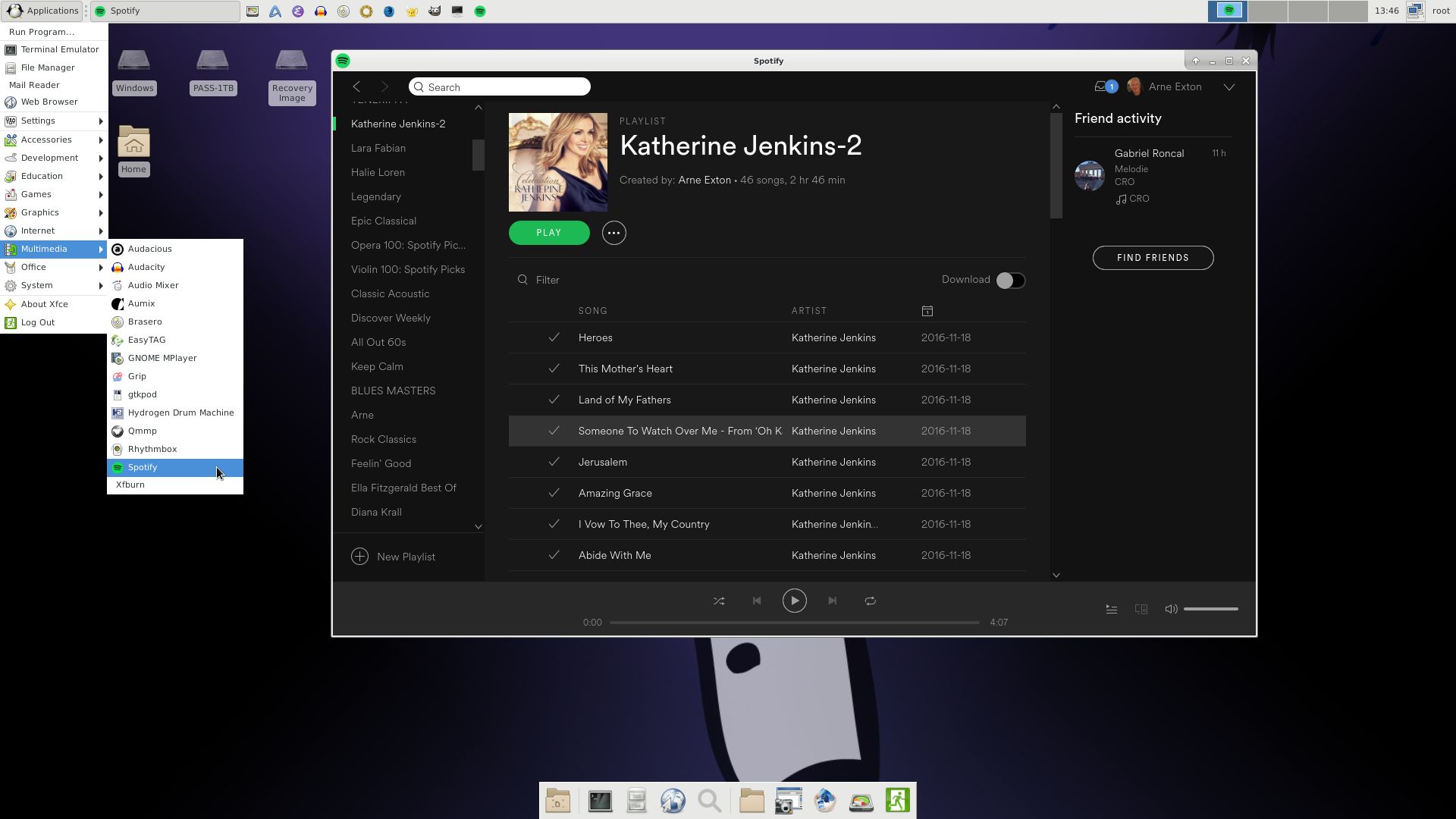
You can easy and quick install Spotify in exGENT. Just run the command emerge spotify. The installation takes about 1 min.

Who is exGENT/Gentoo for?
Experienced Linux users or those who really want to learn Linux.

What happened to the 32 bit version?
Please note that the 32 bit version of exGENT from December 2014 won’t be upgraded. I have deleted the ISO file from the servers. Almost no downloads! I guess 32 bit Linux systems are out of fashion nowadays.

Screenshots
exGENT running Audacity
exGENT running Brasero
exGENT running Samba
exGENT running Spotify

READ MORE…